Filmode in 50 seconds — a guided tour of every feature on iPhone, iPad and Android
Watch the 50-second Filmode tour, then follow along: live film camera, looks, editor, Match Photo, Film Roll and Android, and what is free vs Pro.
On this page
Filmode does two things that most photo apps keep apart: it is a camera that shoots with a film look already baked in, and an editor that puts the same looks on photos you took years ago. The video below walks through all of it in under a minute. This post follows the same order, so you can pause on any chapter and try it yourself.
1. The live film camera
Open the Camera tab and the viewfinder is already graded. What you see is what you get: the look runs on the live preview, so you frame and expose for the final colour, not for a flat image you will fix later.
- Ten film camera bodies sit in the lens picker. Each is a whole character rather than a single colour shift: switching bodies feels like loading a different camera.
- Half Frame, Toy and Instant are free. The rest come with Pro.
- Video uses the same look, so a clip and a still from the same moment match.
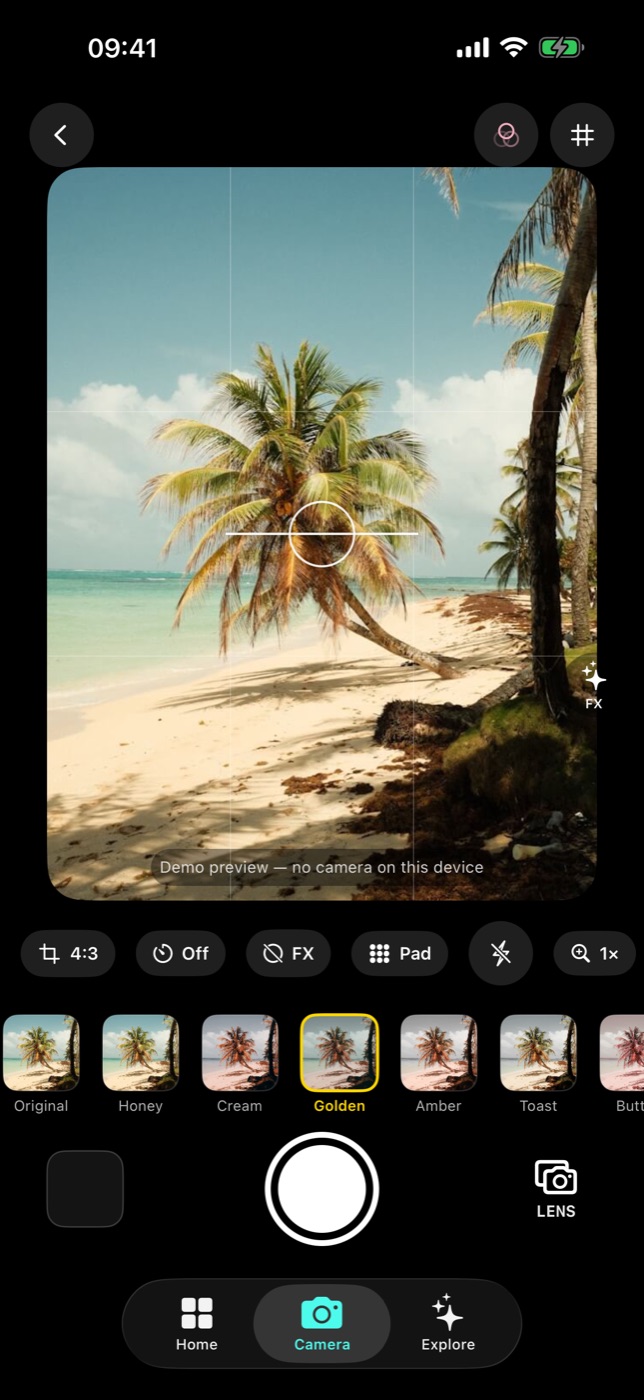
Tap the shutter and the photo is saved with the look applied. There is nothing to export.
Want more control? The manual camera controls and exposure aids posts cover shutter, ISO, focus peaking and false colour.
2. A look for every frame
The look strip under the viewfinder (and in the editor) is the whole Filmode catalogue. Swipe through it on the live preview and stop when the frame feels right.
- Free: the Basic and Retro collections, plus a free starter set in Camera Styles and in the Everyday, Cafe, Wedding, Nature and Local collections.
- Pro: Cinematic, Film and Selfie, the rest of each collection, and the seasonal trending packs. You can preview a Pro look on your own photo before deciding. The trend looks post shows a few of them.
3. The editor: grade the photos you already have
You do not need the camera at all to use Filmode. Tap Pick a photo on Home and the editor opens with the three tools that matter most:
- Looks and adjustments. Tap a look, set its strength, then fine-tune exposure, contrast, white balance, curves and the rest. The photo editor guide goes through every slider.
- Match Photo. Give it a reference photo whose colour you love, and Filmode builds a look that matches it. Previewing the match, its strength and hold-to-compare are free. Using it as a look or saving it as a LUT comes with Pro. More in Match Photo.
- Import .cube and .xmp. Bring the LUTs and Lightroom presets you already own. LUTs show up as their own collection next to the built-in looks; an
.xmppreset becomes a Recipe. See import LUTs and presets.
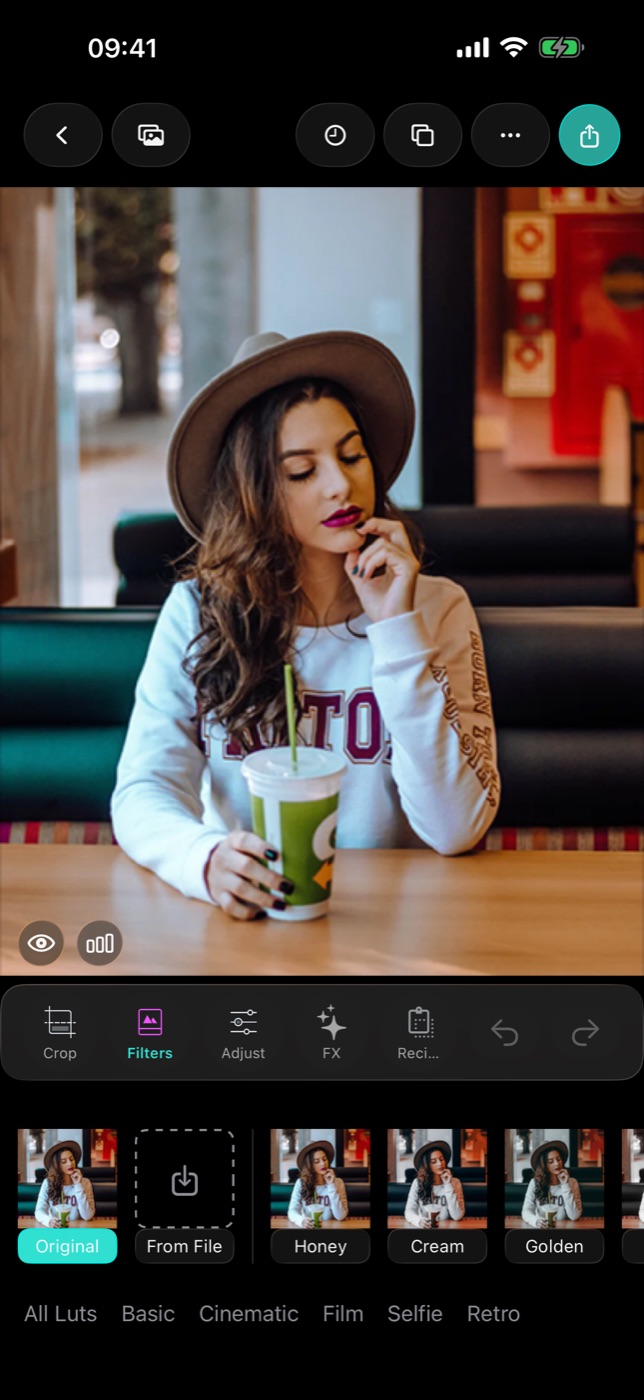
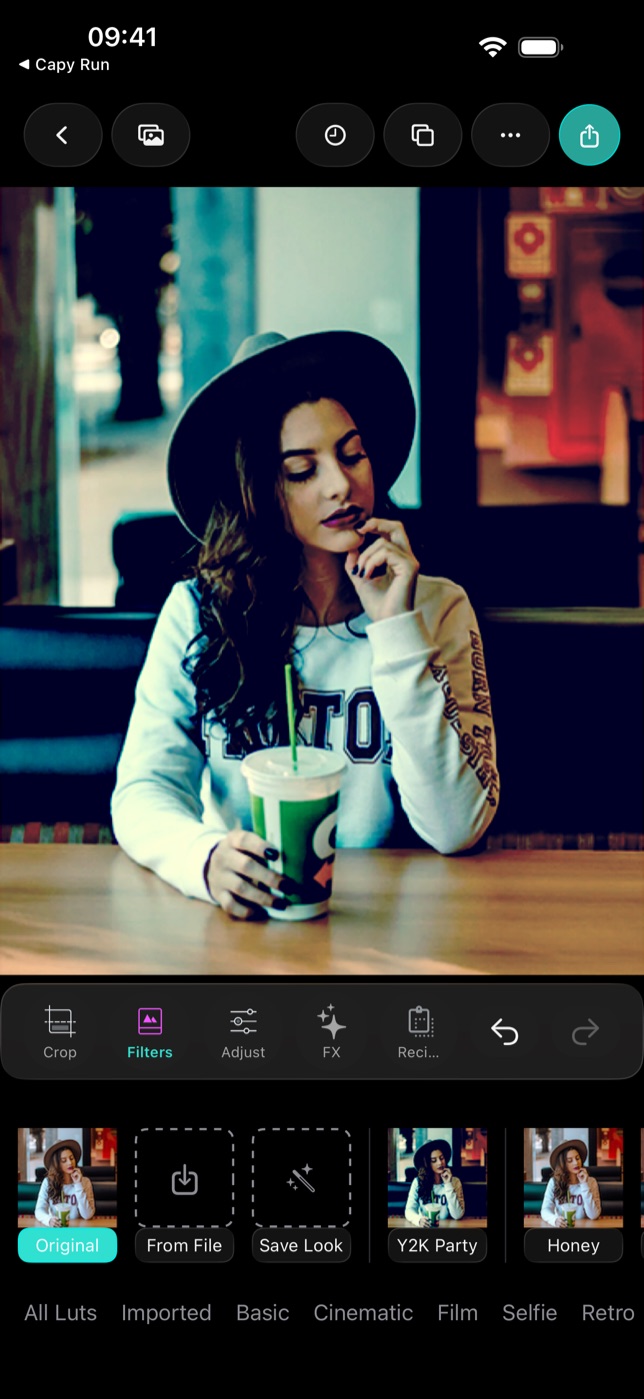
Exports with free looks are full size and have no watermark.
4. Shoot a roll, and wait for it
Film Roll brings back the best part of a disposable camera: you cannot look at your photos yet.
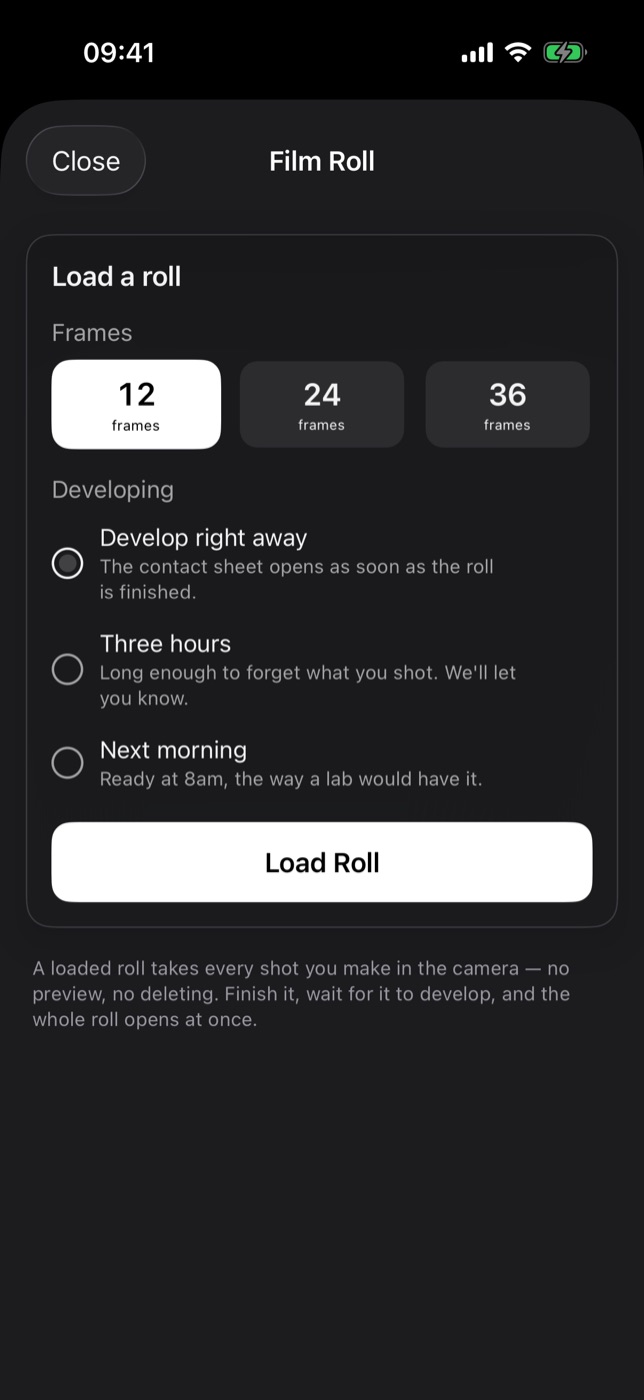
- Load a roll. 12 frames are free; 24 and 36 frames come with Pro.
- Shoot it blind: the frame counter goes down and nothing can be reviewed or deleted.
- Choose when it develops: now, this weekend, or Surprise, a day you will not know in advance.
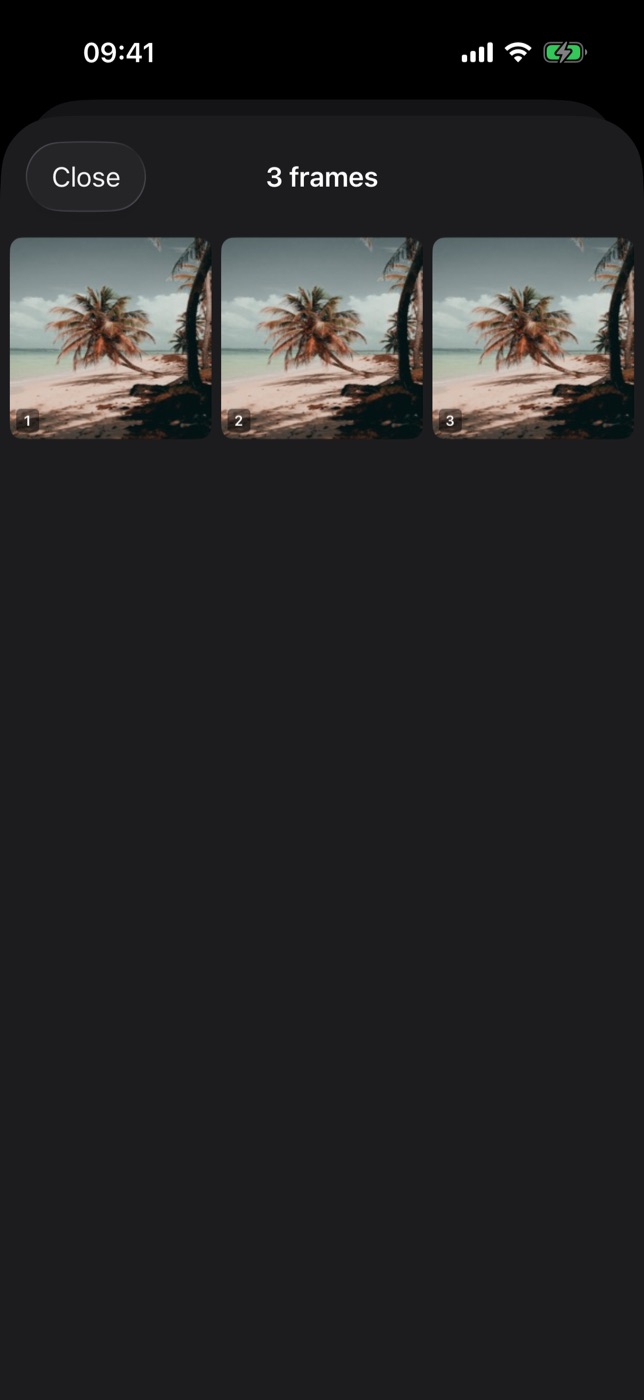
- When it is ready, the whole roll opens at once as a contact sheet.
Hosting a party or a wedding? Start a Shared Roll and show a QR code: guests scan it and shoot a few frames each, with no app or account, and nobody sees the photos until the reveal time. Read the Film Roll, develop options and shared roll posts for the details.
5. Also on Android
On Android, Filmode Vibe is a toy film camera with no ads and no watermark:
- Two camera skins. Toy is the everyday camera. Instant ejects a print that develops in your hand.
- 10 live effects to mix with the look: rain, glow, VHS, frost, grain, CCD, flash, dust, light leak and star.
- Six film looks: Golden, Teal, Analog, Glow, Midnight and Mono.
- 7 print frames for the finished photo, from Polaroid to photo booth.
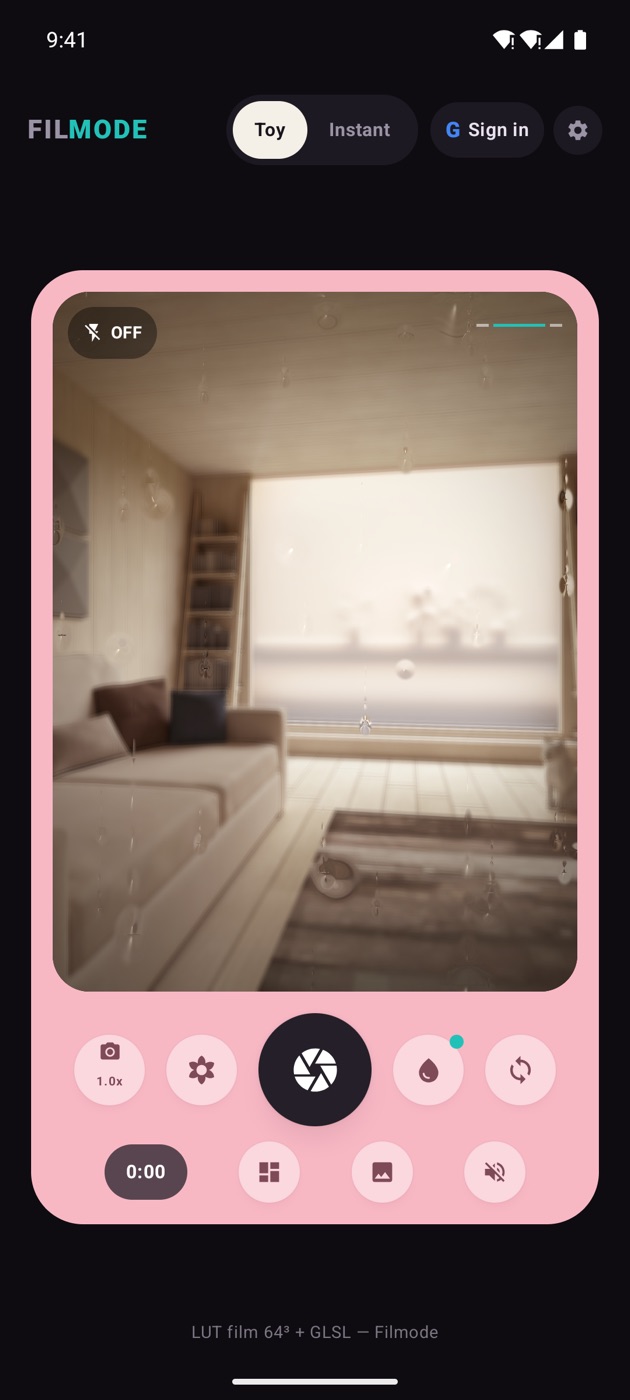
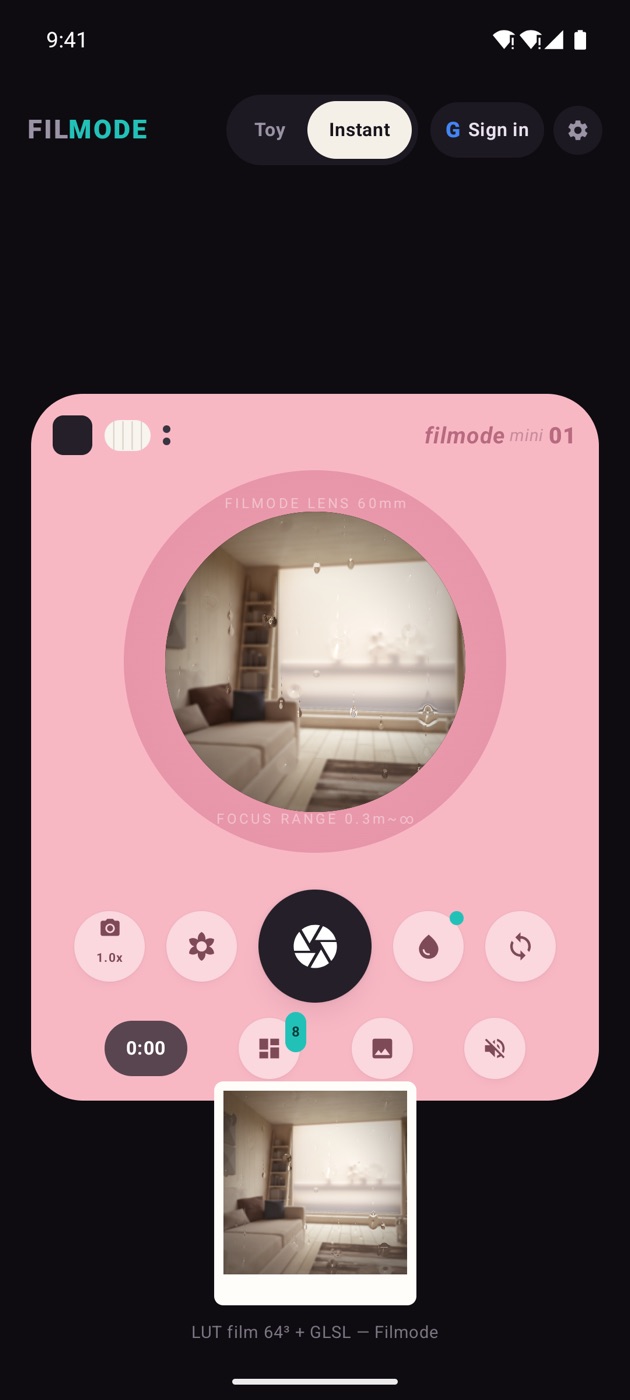
The Filmode Vibe post covers the camera in depth.
What is free and what is Pro
| Free | Pro | |
|---|---|---|
| Camera bodies | Half Frame, Toy, Instant | All 10 |
| Looks | Basic, Retro, and a starter set in Camera Styles and other collections | Every look, incl. Cinematic, Film, Selfie and the trending packs |
| Match Photo | Preview, strength, compare | Use as a look, save as LUT |
| Film Roll | 12 frames | 24 and 36 frames |
| Photo export | Full size, no watermark | Full size, no watermark |
Where to start
If this is your first time in the app, Getting started walks through the first launch, the Home hub and your first export. Then try one thing from each chapter above: shoot a frame with a free camera body, grade an old photo, and load a 12-frame roll for the weekend.