Match Photo on iPhone — copy the colour of any photo onto your own
Pick a reference photo, and Filmode rebuilds its colour as a LUT for the picture you are editing. Dial the strength, compare, and keep it as a look.
On this page
You have seen the colour you want. It is in a film scan a friend posted, a still from a movie you love, or a photo you took last summer that simply felt right. Describing that colour in sliders is slow and usually wrong. Match Photo skips the description: you show Filmode the reference, and it rebuilds that colour as a LUT for the photo you are editing.
This guide covers where Match Photo lives, how to pick a reference that matches well, how the strength slider and hold-to-compare work, and the difference between using a match once and keeping it as a look of your own.
What Match Photo actually does
Filmode reads how the reference photo spreads its reds, greens and blues — where its shadows sit, how warm its highlights are, how much colour it carries in the mid-tones — and builds a colour map that pushes your photo toward the same distribution. The result is a real LUT, the same kind of file as the built-in looks.
That has two consequences worth knowing up front:
- It copies colour, not content. A sunset reference will not paint a sunset into a street scene. It will give the street scene the sunset's palette.
- It is a colour transform only. Grain, blur, vignettes and sharpness in the reference are not copied, because a LUT cannot hold them. Add those afterwards with the editor's own tools.
Match a photo, step by step
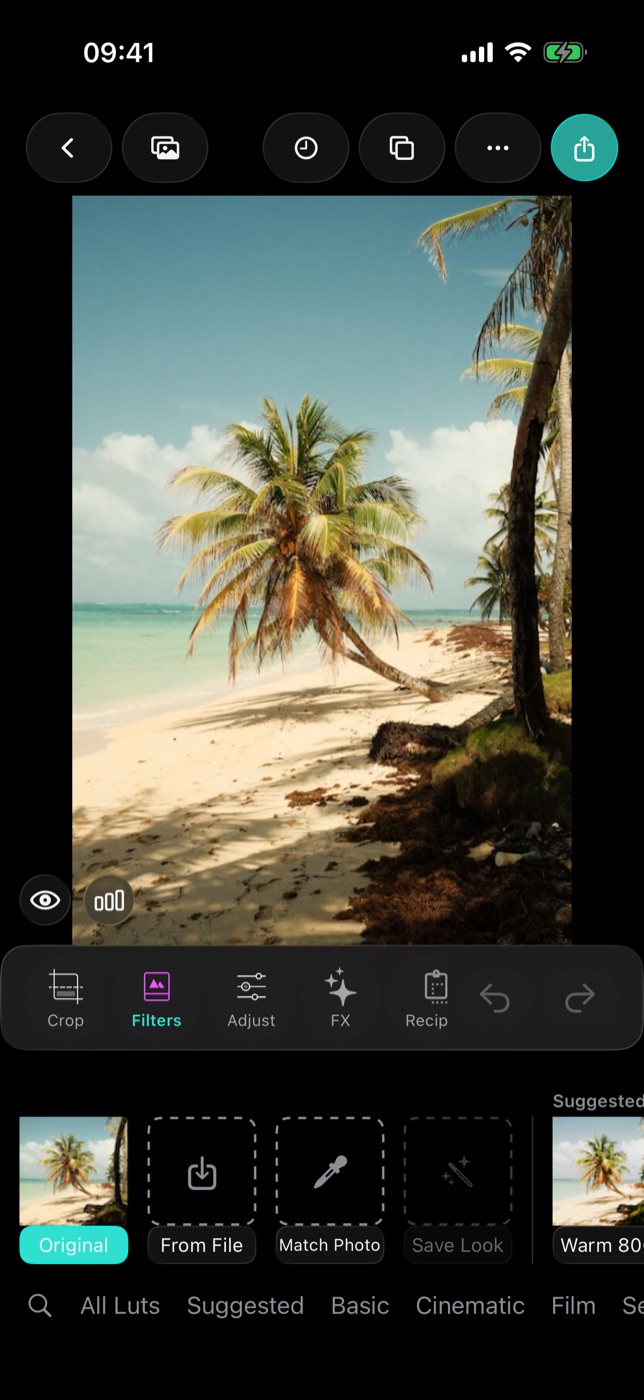
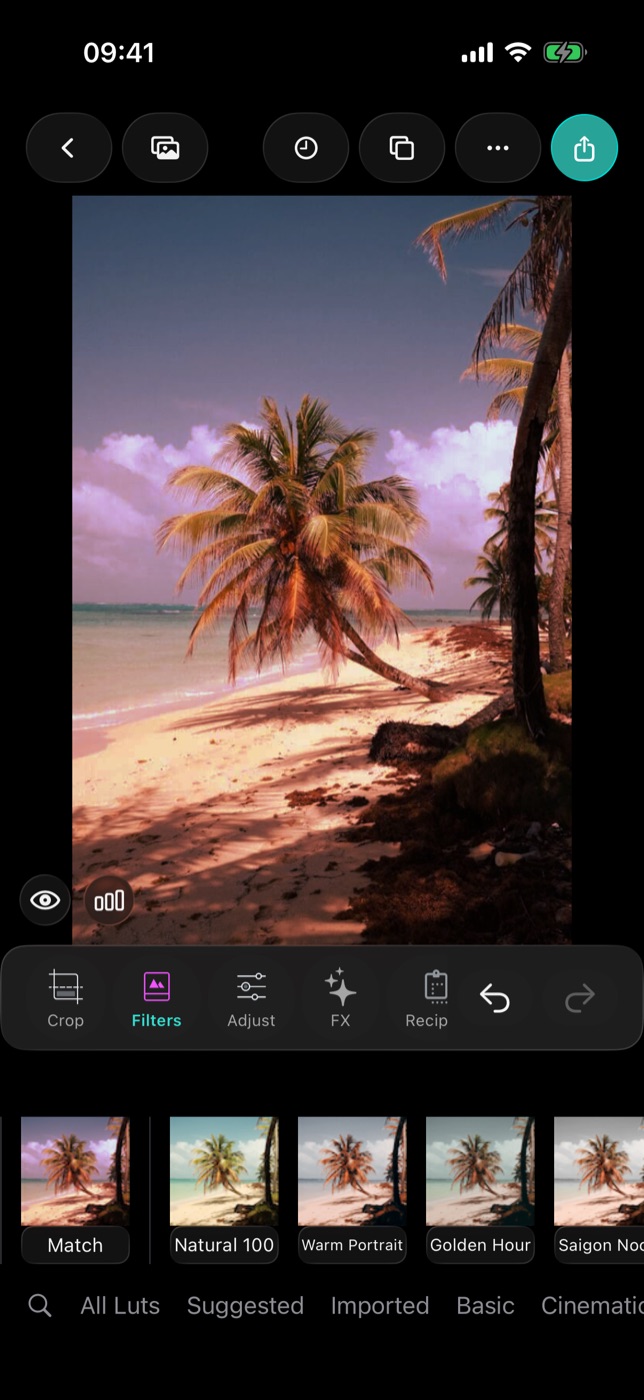
- Open a photo in the editor and tap the Filters tab.
- Scroll the Filters strip to the start. After Original and From File you will find the Match Photo tile.
- Choose a reference. The sheet opens on Choose a reference. Tap it and pick any image from your library — a film scan, a frame grab, anything whose colour you want.
- Look at the preview. The match renders on your own photo straight away, inside the sheet, at 75% strength.
- Adjust the strength, compare against the original, then choose Use This Look or Save as LUT.
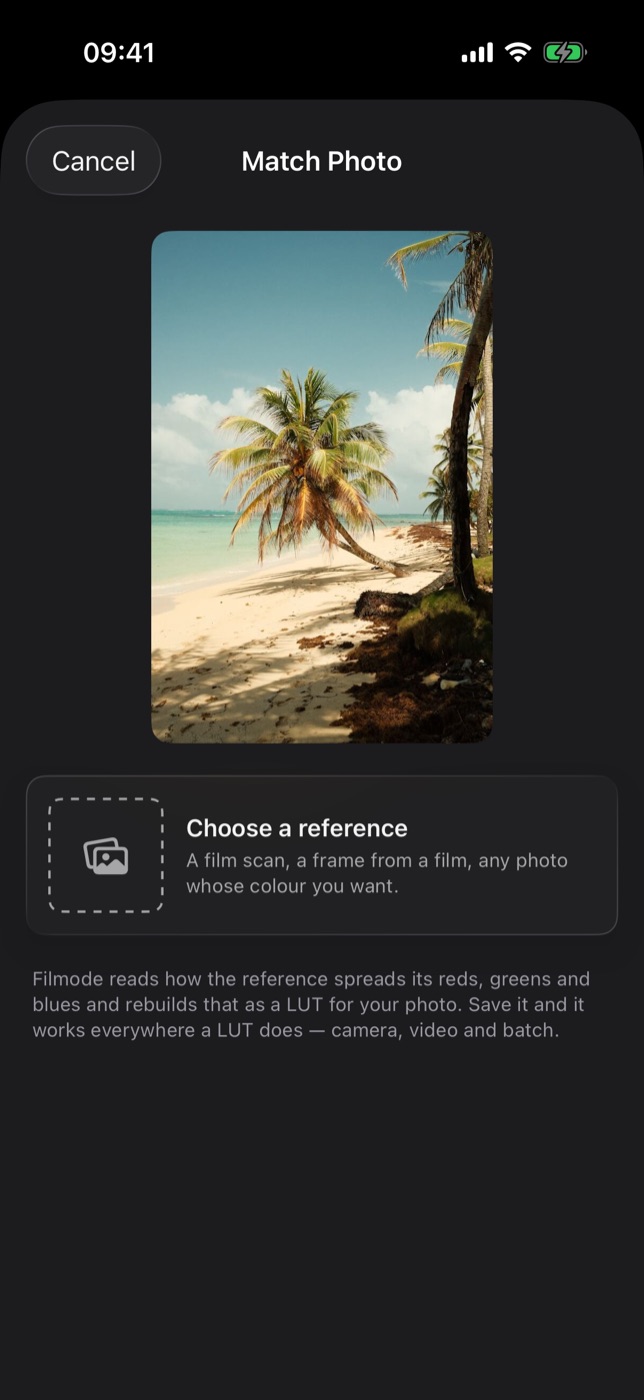
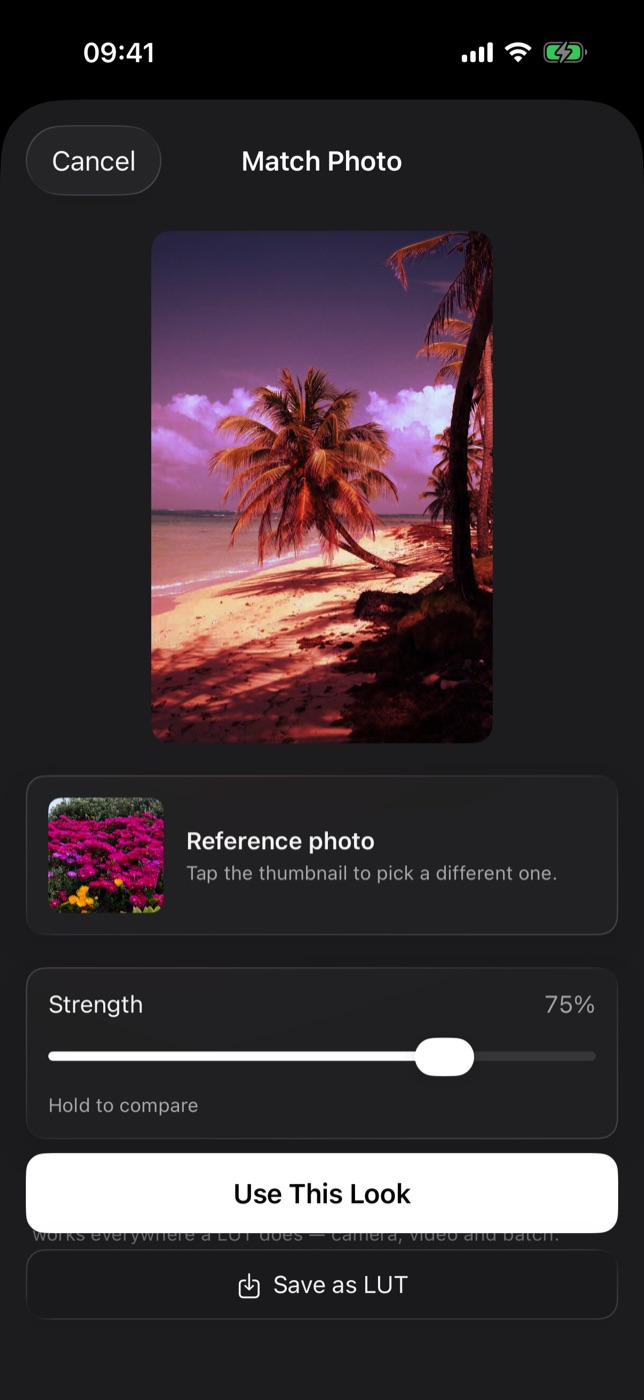
To try a different reference, tap the thumbnail in the Reference photo row. The match rebuilds from the new picture.
Strength and hold to compare
A colour match is always judged against what it replaced. The sheet gives you two tools for that:
- Strength blends the match with your original, from 0 to 100%. The preview re-renders when you let go of the slider, so drag, release, look.
- Hold to compare. Press and hold the preview to see your original photo; let go to see the match again. An Original badge shows while you are holding.
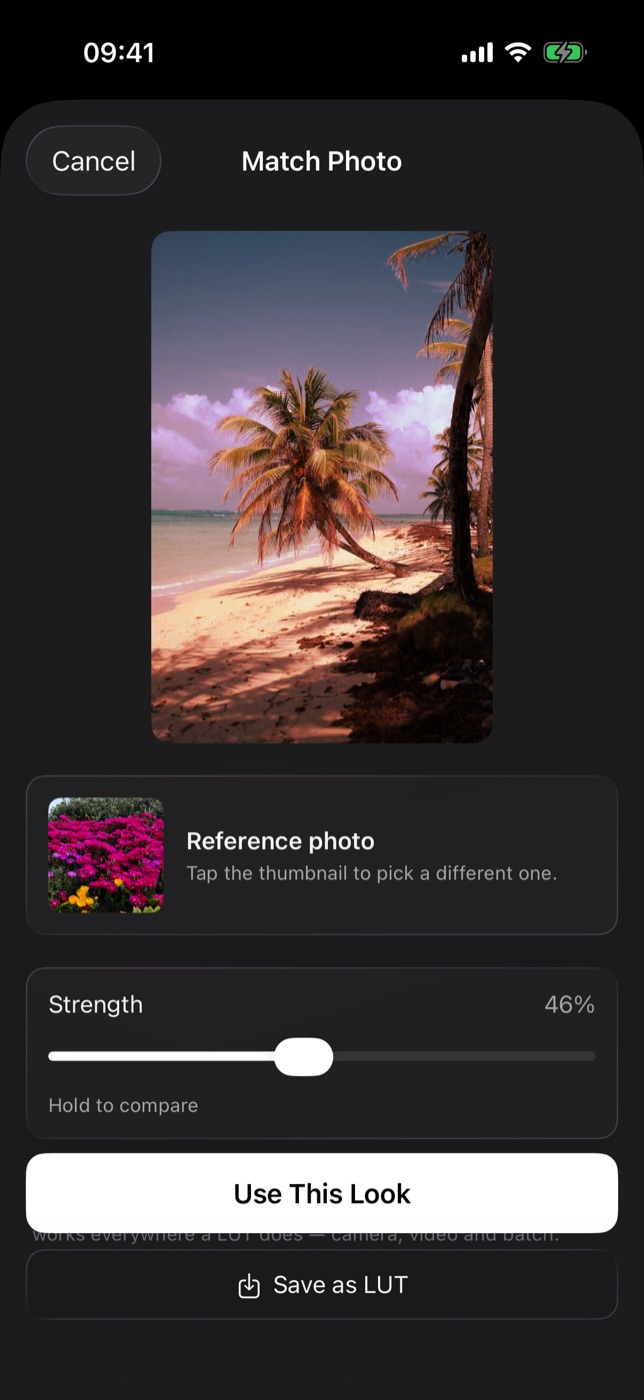
Strong references — heavy cross-processing, deep teal-and-orange, near-monochrome palettes — usually look best between 40% and 70%. Gentle references can go all the way up.
Use This Look vs Save as LUT
The two buttons at the bottom of the sheet do different jobs:
| Use This Look | Save as LUT | |
|---|---|---|
| Applies the match to the current photo | Yes | Yes |
| Keeps it in your library | No — this editing session only | Yes, in the Imported collection |
| Shows up in the camera's look strip | No | Yes |
| Usable on other photos and in batch edits | No | Yes |
| Name | Match | Match, Match 2, Match 3… |
Pick Use This Look when the reference only belongs to this one photo. Pick Save as LUT when you have found a colour you will want again — then it behaves exactly like any other look in Filmode, with an intensity slider, favourites and .cube export from Settings › Presets & LUTs.
Choosing a reference that matches well
- Pick a photo with colour range. A reference that is almost one flat colour gives the matcher very little to work with. If it has too little colour, Filmode says so and asks for one with more range.
- Match light to light. A daylight reference on a daylight photo lands closer than a neon night reference on a sunny beach.
- Watch skin. If your photo has people in it, compare their skin with hold-to-compare before you keep the match. Bring strength down if skin goes too far.
- Stack, don't fight. A match is a starting point. Apply it, then fix exposure or white balance in Adjust on top.
- Save the good ones. A match you like on one photo usually works across the whole shoot. Save it as a LUT and use batch edit.
Free and Pro
Everyone can open Match Photo, pick a reference, move the strength slider and hold to compare, so you can see exactly what a match does to your photo before paying anything. Use This Look and Save as LUT are part of Filmode Pro; tapping either on the free plan opens the Pro sheet.
Frequently asked questions
Does Match Photo upload my photos? No. The reference and your photo are read on your device, and the LUT is built there.
Can I use a screenshot from a film as the reference? Yes. Any image in your photo library can be a reference. Use your own images or ones you have the right to use.
Why does my match look different from the reference? The match copies the colour distribution, and your photo has different content and light. Lower the strength, or correct exposure and white balance first, then match again.
Where do saved matches go? Into the Imported collection in the Filters strip, named Match, Match 2 and so on. They also appear in the camera's look strip, and you can rename or export them in Settings › Presets & LUTs.
Can I export a match as a .cube file? Yes, once it is saved as a LUT. Long-press it in Settings › Presets & LUTs and choose Export .cube.
Is it on iPad and Mac? Yes. Match Photo is in the editor on iPhone, iPad and Mac.
Try it
Open any photo in Filmode, tap Filters, and point Match Photo at the picture whose colour you keep coming back to. For more on what a LUT can and cannot hold, read Make your own LUT on iPhone.