Shared Roll — a disposable camera for your wedding or party, with a QR code
Host a Filmode Shared Roll: guests scan a QR, shoot a few frames each with no app or account, and every photo stays hidden until the reveal time.
On this page
Put a disposable camera on every table at a wedding and you get the photos nobody else took — the dance floor at midnight, the grandparents, the blurry toast. You also get cameras left behind, rolls that never get developed and a week of chasing people for their pictures.
Shared Roll is the same idea without the plastic cameras. You start a roll in Filmode and show a QR code. Guests scan it with their phone camera, get a few frames each, and shoot. Every frame goes straight onto the roll, and nobody — host included — sees the photos until the reveal time you set.
Start a Shared Roll
- Open the Camera tab and tap ROLL.
- Scroll to the bottom and tap Shared Roll — Guests scan a QR and shoot a few frames each. Free for up to 5 guests.
- Sign in if you are not signed in yet. Hosting needs an account so the roll and its photos stay yours. Guests never need one.
- Fill in the new roll:
- Roll name — what guests see, for example Linh & Minh's wedding.
- Roll size — Free, Pro, or an Event Pass you own. This sets how many guests and frames you get (see the table below).
- Frames per guest — 6, 12, 24 or 36, up to what the roll size allows.
- Camera — Instant or Toy, the camera every guest shoots with.
- Shooting closes — when guests can no longer shoot. It starts six hours from now.
- Photos reveal — when the photos appear. It starts 24 hours from now and must be after shooting closes.
- Tap Start Shared Roll. The roll page opens with the QR code.
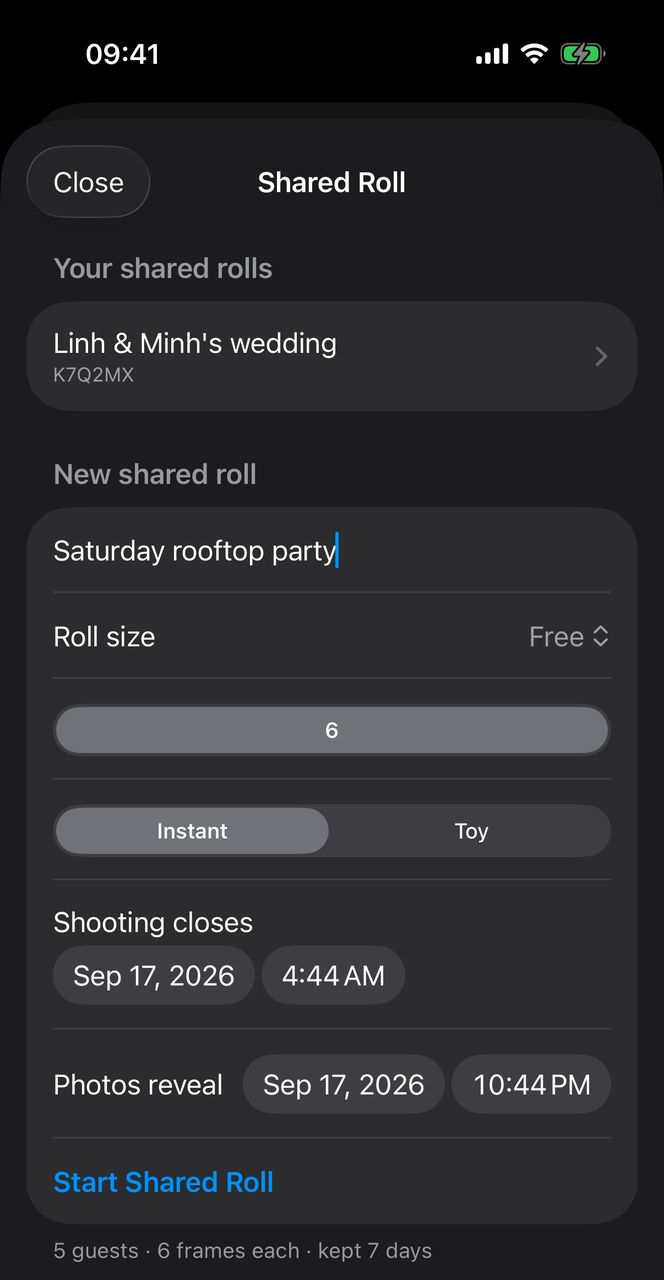
If a setting is outside what the roll size allows, the form tells you under the button — for example A free roll reveals within 2 days. Pick a sooner time or a bigger roll. — and the start button stays off until it fits.
Hand out the QR
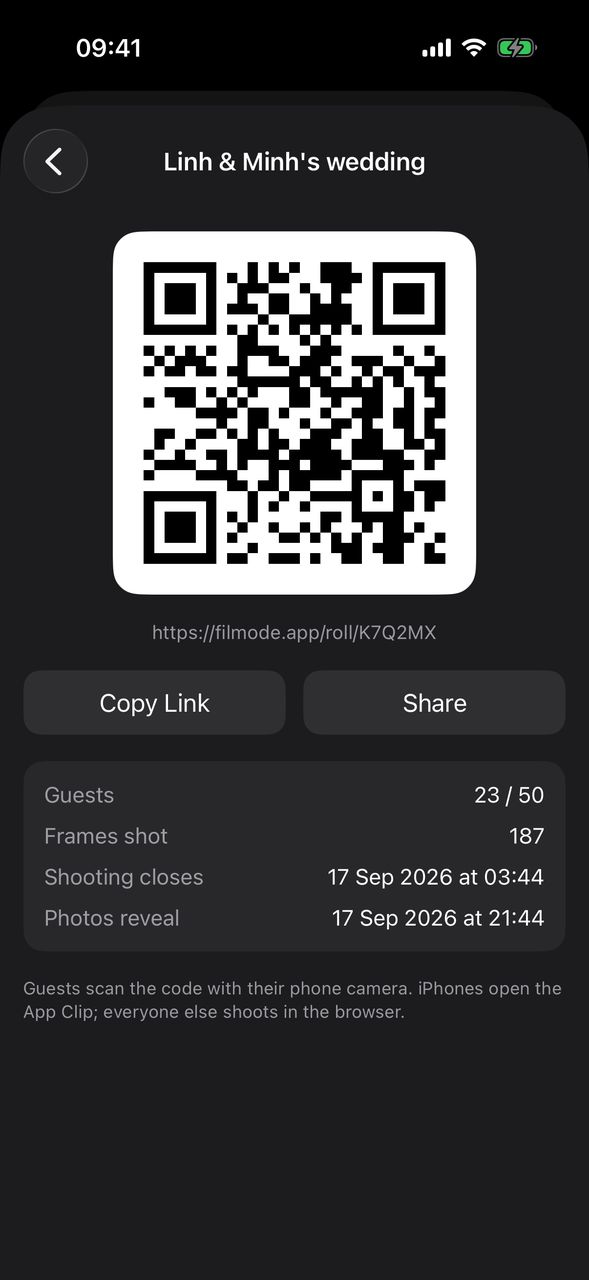
The roll page shows a QR code, the roll's link (filmode.app/roll/ followed by the roll code), and Copy Link and Share buttons. Print the QR on a table card, put it on a screen, or send the link to the group chat.
Below the QR, the roll page shows live numbers that refresh every 30 seconds:
- Guests — how many have joined, out of the limit.
- Frames shot — every frame on the roll so far.
- Shooting closes and Photos reveal — the two times you picked.
When every guest place is taken, the page says The roll is full. New guests are turned away.
Every roll you host is listed under Your shared rolls when you open Shared Roll again, until it expires.
What guests see
Guests scan the code with their phone camera. On iPhone it opens the Filmode App Clip — no App Store download — and everyone else shoots in the browser. No account, no sign-up.
- The camera is the one you chose, Instant or Toy, and the guest cannot change it.
- A counter shows how many frames they have left.
- Each frame is sent to the roll as soon as it is taken. There is no preview to check and nothing to delete — every frame counts.
- When a guest uses their last frame, they see that their roll is finished and when the photos will reveal.
Until the reveal time, the photos stay hidden from everyone. The server keeps them back, not just the app.
The reveal
At the reveal time, the roll page shows a See the Photos button that opens every guest's frames together on the roll's board. A browser left open on the roll page reloads itself at the reveal.
Roll sizes and Event Passes
| Roll size | Guests | Frames per guest | Photos kept | Reveal |
|---|---|---|---|---|
| Free | 5 | up to 6 | 7 days | within 2 days |
| Group Pass | 15 | up to 12 | 30 days | any time before the roll expires |
| Party Pass | 50 | up to 36 | 90 days | any time before the roll expires |
| Wedding Pass | unlimited | up to 36 | 365 days | any time before the roll expires |
- Free — anyone signed in can host a small roll: five guests, six frames each.
- Filmode Pro — if you have Pro (from the App Store or the web), you can host at Party size without buying a pass.
- Event Passes — a one-time purchase in the Event Passes section at the bottom of the Shared Roll screen, with the price in your local currency. A pass pays for one roll. It stays unused until you start a roll with it, so you can buy it well before the event.
When the roll's time is up (7, 30, 90 or 365 days after you start it), the guests' photos are deleted from Filmode's storage and the roll is closed. Save the photos you want to keep before then.
Tips for a good Shared Roll
- Fewer frames make better photos. Six or twelve frames each makes guests pick their moments — the disposable camera effect.
- Close shooting when the party ends, and set the reveal for the next morning. Everyone wakes up to the photos.
- Put the QR where people wait: the bar, the guest book, the photo corner.
- Test it with one guest first. Scan your own QR with a second phone before the doors open.
Frequently asked questions
Do guests need to install Filmode? No. iPhones open the App Clip from the QR code, and other phones shoot in the browser.
Do guests need an account? No. Only the host signs in.
Can the host see photos before the reveal? No. Photos stay hidden from everyone, host included, until the reveal time.
Can a guest delete a bad frame? No. Like a disposable camera, every frame shot goes onto the roll.
What happens when the roll is full? New guests are turned away. Guests who already joined can keep shooting their frames until shooting closes.
How long are the photos kept? 7 days on a free roll, 30 days with a Group Pass, 90 days with a Party Pass or Pro, and 365 days with a Wedding Pass. After that the photos are deleted.
Does a pass expire if I do not use it? A pass stays unused until you start a roll with it. The roll's own lifetime starts from then.
Try it
Open Filmode, tap ROLL, then Shared Roll, and start a free roll for five friends tonight. For your own solo rolls, see the Film Roll guide, or try Booth Mode for a four-shot photo strip at the party.