Exposure aids on iPhone — histogram, waveform, focus peaking, zebra and false colour
Read exposure and focus like a cinema camera: turn on the histogram, scopes, focus peaking, zebra and false colour in the Filmode camera's Advanced settings.
On this page
A phone screen is a poor judge of exposure. In sunlight it looks dark, in a dark room it looks bright, and with a look applied you are no longer seeing the raw brightness at all. Cinema cameras solved this long ago with exposure aids — tools that measure the picture instead of asking your eyes to. The Filmode camera has the same set: a live histogram, a waveform, RGB parade and vectorscope, focus peaking, zebra stripes and false colour, plus a readout of the exposure itself.
This guide covers where to switch each one on, how to read it, and which to reach for in which situation.
Where the aids live
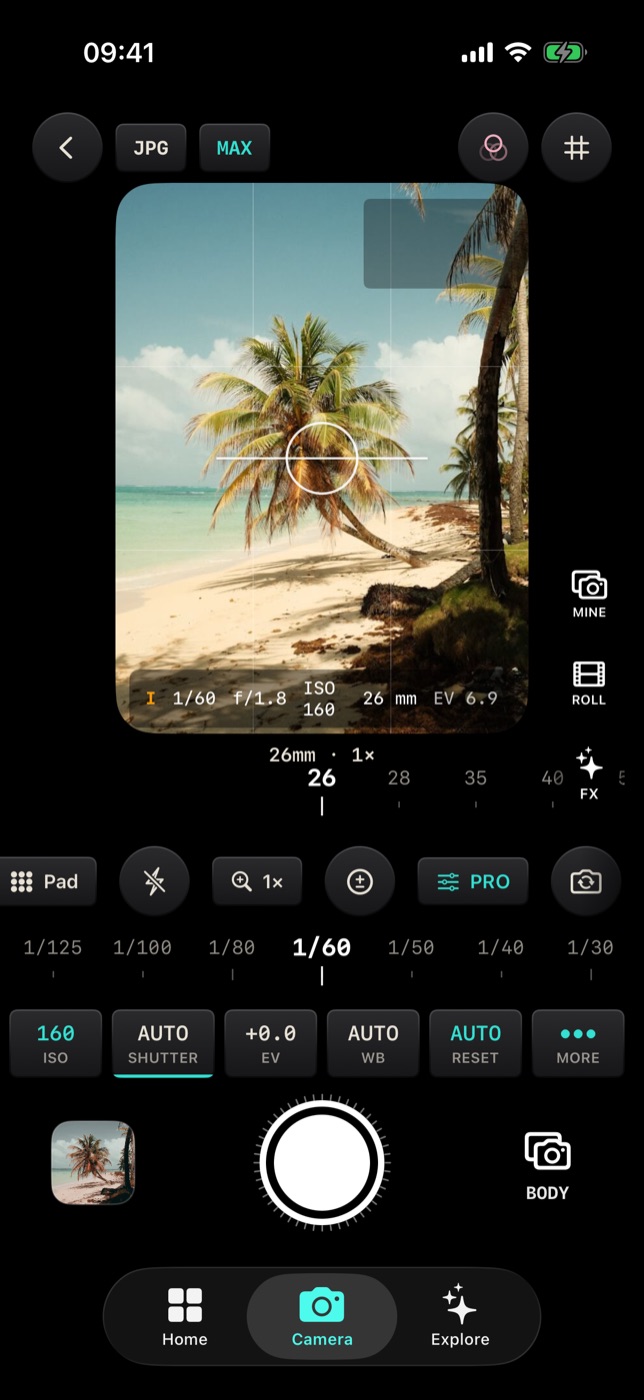
- Open the Camera tab and tap PRO in the button row under the viewfinder.
- Tap MORE at the end of the row of control cells.
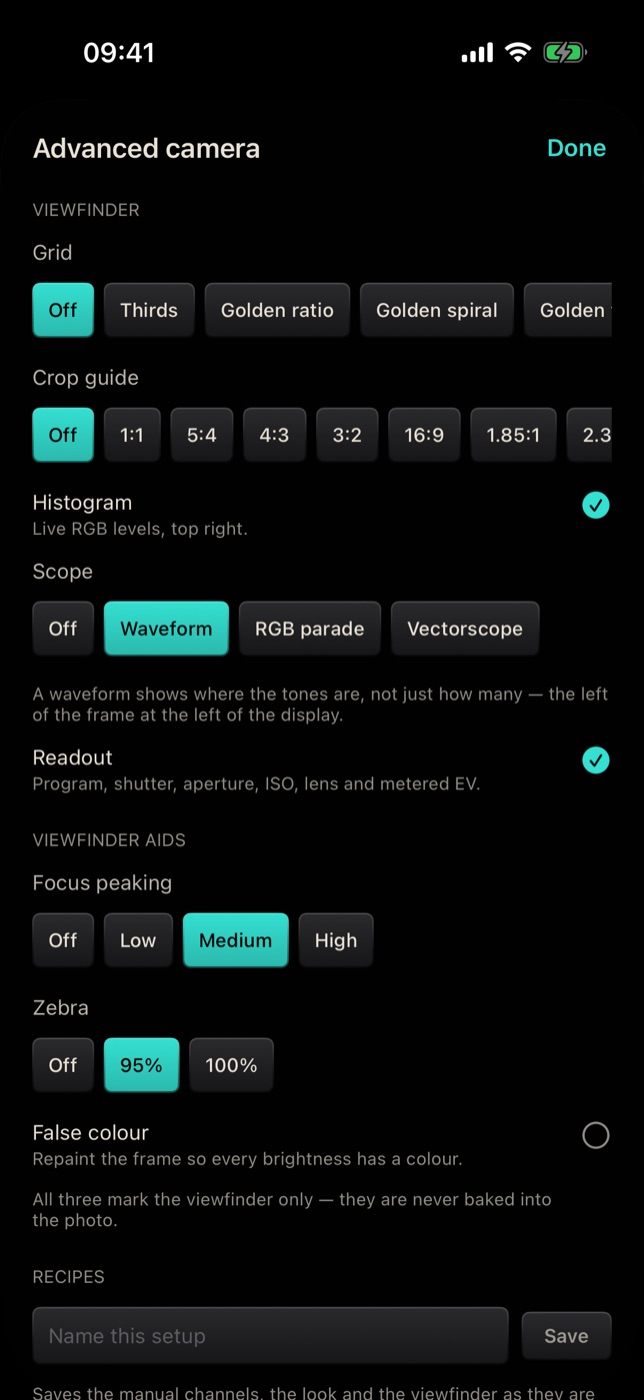
- The Advanced camera sheet opens. The aids are in its first two sections, Viewfinder and Viewfinder aids.
Each aid is a switch or a row of options. Tap Done and the viewfinder shows what you turned on. The MORE cell stays lit while anything in the sheet is away from its default, so you always know something is switched on.
Measured before the look
Every aid measures the ungraded frame — what the sensor sees before your look is applied. A moody look can crush the shadows on screen without the camera actually underexposing, and the aids will not be fooled by it. And none of them end up in the photo: they mark the viewfinder only.
Histogram
Histogram draws live red, green and blue levels in the top-right corner of the viewfinder. Dark tones are on the left, bright tones on the right, and the height shows how much of the frame sits at each brightness.
- Piled against the right edge — highlights are clipping. Lower EV or use a faster shutter.
- Piled against the left edge — shadows are crushed to black.
- One channel clipping on its own — a saturated colour, like a red sign or a blue sky, is running out of range even if the others are fine.
Scopes: waveform, RGB parade, vectorscope
Scope adds one larger measurement to the viewfinder:
- Waveform shows where the tones are, not only how many. The left of the frame is at the left of the display, and brightness runs from bottom to top. If the sky on the right of your frame is pinned to the top of the waveform on the right, that sky is clipping.
- RGB parade is the same idea drawn three times side by side, one for red, green and blue. It makes a colour cast obvious: in a neutral grey scene the three columns line up.
- Vectorscope — new in the latest update — plots colour instead of brightness: the angle is the hue and the distance from the centre is saturation. The cloud is drawn in the colours it stands for, so you can see at a glance which way the frame leans and how far saturation reaches.
Choose one at a time; the histogram can stay on alongside it.
Readout
Readout writes the exposure along the bottom of the viewfinder: the program, shutter speed, aperture, ISO, focal length and the metered EV — for example I 1/60 f/1.8 ISO 160 26 mm EV 6.9.
The first letter tells you who is in control, the same way a camera's mode dial does:
| Letter | Meaning |
|---|---|
| P | Program — the camera sets ISO and shutter |
| I | You locked ISO, the camera sets shutter |
| S | You locked shutter, the camera sets ISO |
| M | Manual — you set both |
Focus peaking
Focus peaking paints the sharpest edges in the frame yellow-green, so you can see exactly what is in focus without zooming in. Choose Low, Medium or High: a higher setting paints more edges, which helps in low contrast scenes; a lower one keeps busy scenes readable.
Peaking is most useful with manual focus. Select FOCUS in the PRO panel and drag its ruler until the highlight lands on your subject's eyes, the petal or the label you want sharp.
Zebra
Zebra lays dark stripes over the brightest parts of the frame:
- 100% marks only what is already clipped — pure white with no detail left.
- 95% warns you a little earlier, while there is still detail to save.
When stripes appear on something that matters — a face, a white dress, clouds — bring the exposure down until they go away or shrink to the parts you are happy to lose, like the sun or a lamp.
False colour
False colour repaints the whole viewfinder so every brightness level has its own colour. It is the fastest way to see the exposure of the entire frame at once. Turning it on shows a legend under the switch.
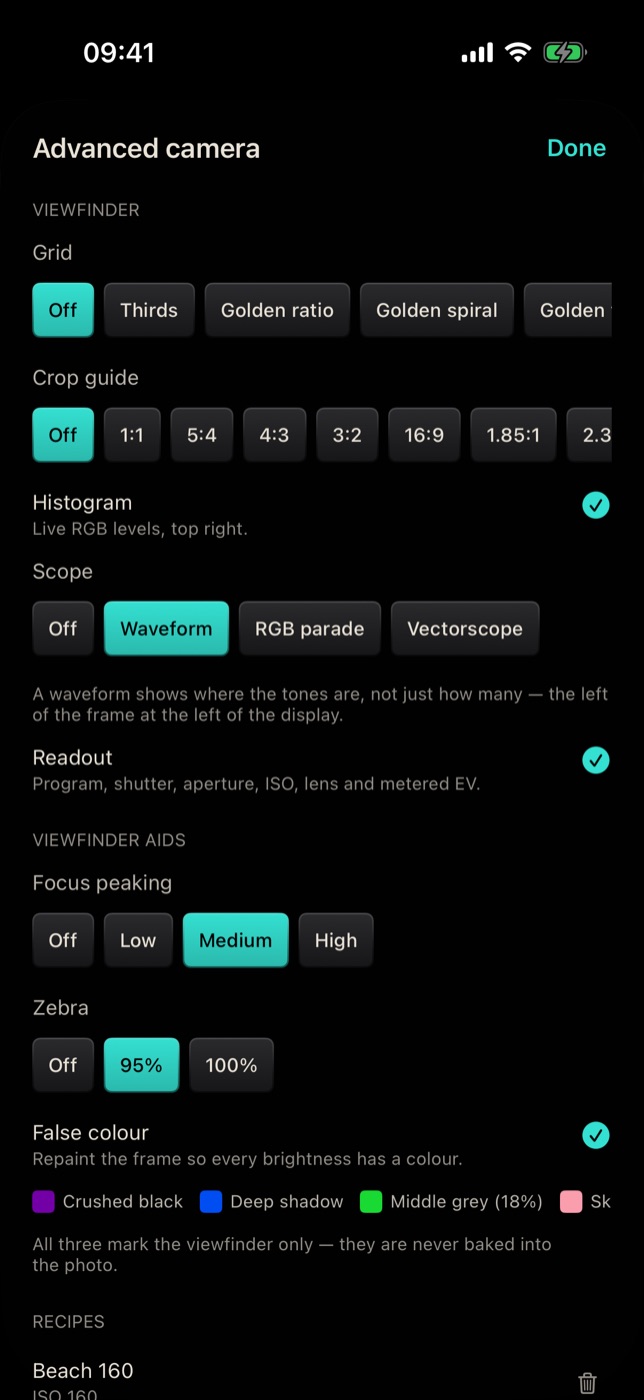
The scale, from dark to light:
| Colour | Band | What to do |
|---|---|---|
| Purple | Crushed black | Detail is gone. Brighten if it matters. |
| Blue | Deep shadow | Dark but holding detail. |
| Grey | Shadow | |
| Green | Middle grey (18%) | A classic exposure target. |
| Grey | Mid tone | |
| Pink | Skin | Where well-exposed skin usually sits. |
| Grey | Highlight | |
| Yellow | One stop under clipping | Bright, still safe. |
| Orange | Almost clipped | Take care. |
| Red | Clipped white | Detail is gone. Darken if it matters. |
Most bands are deliberately grey, so the ones that carry a decision stand out. For a portrait, expose until the face shows pink; for a scene, keep the important parts out of red and purple.
Which aid to use when
- Portraits: false colour for skin, zebra at 95% for highlights on the face.
- Landscapes and bright skies: histogram or waveform to protect the sky.
- Macro and manual focus: focus peaking on Medium or High.
- Mixed or coloured light: RGB parade to spot the cast, then lock white balance.
- Street and quick shooting: the readout and the histogram, which stay out of the way.
Once a combination works for you, save it with the rest of your setup as a camera recipe.
Free and Pro
The histogram, scopes, readout, focus peaking, zebra and false colour are all free.
Frequently asked questions
Do the aids appear in my photos? No. They mark the viewfinder only and are never saved into the photo.
Why do the aids disagree with how the viewfinder looks? Because they measure the frame before your look is applied. A strong look changes how the picture appears on screen, not how much light the camera recorded.
Can I use peaking, zebra and false colour at once? Yes, they can all be switched on together, but false colour repaints the whole frame, so it is easiest to read on its own.
Is false colour the same on Android? Yes. Filmode for Android uses the same bands, edge for edge.
Try it
Open the Camera tab in Filmode, tap PRO, then MORE, and turn on Zebra at 95%. Point the camera at a bright window and watch the stripes appear. For the controls that fix what the aids show you, read Manual camera controls.