Drive modes on iPhone — burst, bracketing, interval, long exposure, focus stacking and dual shot
Set the Filmode camera to shoot bursts, exposure brackets, timelapses, long exposures, focus stacks and dual shots, plus RAW, quality and file settings.
On this page
A shutter button takes one photo. A camera's drive mode decides what that one press actually does: fire a run of frames, walk the exposure up and down, keep shooting on a timer, or stack frames into something a single exposure cannot capture. The Filmode camera has seven drive modes, and the same Advanced camera sheet holds the settings that shape every capture — RAW, quality, file names and what the volume buttons do.
This guide goes through each drive mode, when to use it, and the capture settings around it. Features marked latest update arrived in the most recent version of Filmode.
Where to find it
- Open the Camera tab and tap PRO in the row under the viewfinder.
- Tap MORE at the end of the control cells to open Advanced camera.
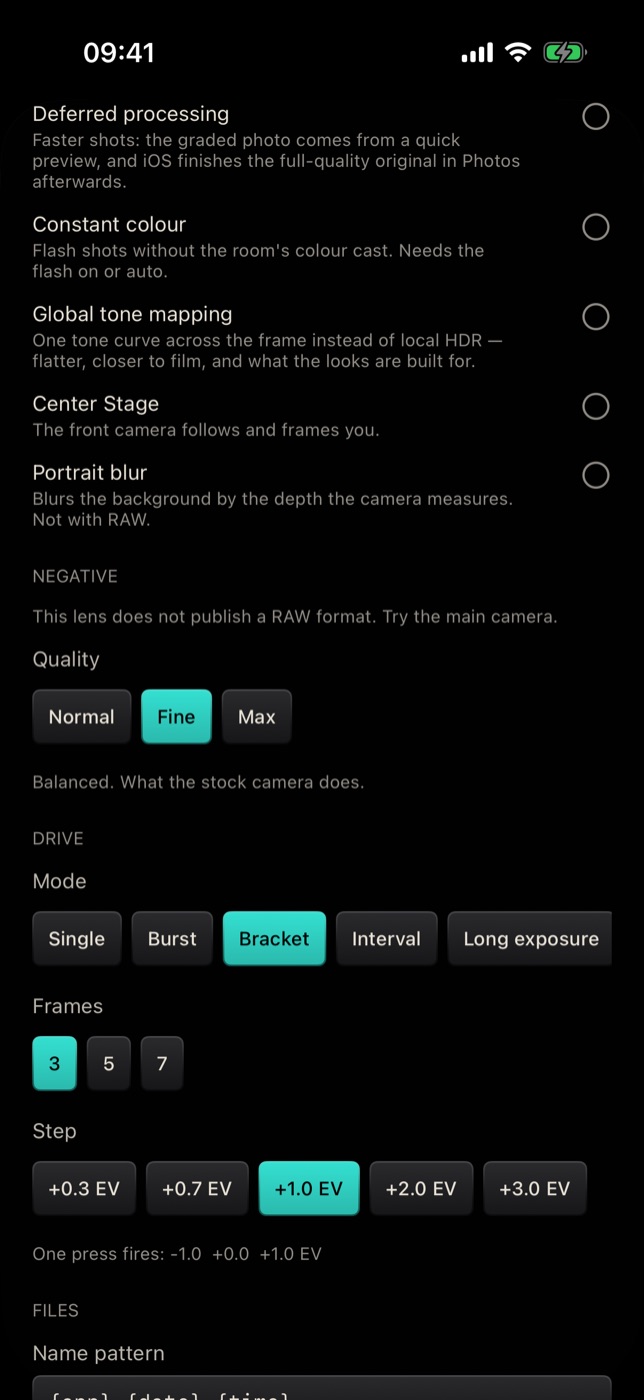
- Scroll to Drive and choose a Mode. The mode row scrolls sideways.
Only the options for the selected mode are shown under it. The MORE cell stays lit while any advanced setting is away from its default, so a camera left on a 7-frame bracket cannot surprise you on your next shot.
The drive modes
Single
One press, one photo. The default.
Burst
One press fires a run of 2 to 30 frames at the current settings. Use it for moments you cannot time — a jump, a laugh, a wave breaking — and keep the best frame.
Bracket
One press fires an exposure series: 3, 5 or 7 frames, each a fixed step apart — +0.3, +0.7, +1.0, +2.0 or +3.0 EV. The note under the settings spells out exactly what one press will fire, for example −1.0 +0.0 +1.0 EV.
Use it when the light is difficult — a bright window in a dark room, a sunset with a dark foreground — and pick the best exposure later, or blend them in an HDR tool. Small steps (+0.3, +0.7) are for choosing the best exposure; big steps (+2.0, +3.0) are for merging.
Interval
Interval turns the camera into an intervalometer for timelapses and long unattended sessions.
- Ends after — stop after a number of shots, or after a duration.
- Every — the gap between shots, from 1 second to 600 seconds.
- Shots (2 to 999) or For (1 to 600 minutes), depending on how it ends.
- Bracket each slot — fire the whole bracket series at every interval, for timelapses through changing light.
A Plan line sums it up, such as Plan: 120 frames over ~20 min, so you know whether to hold the phone or set it down.
Long exposure
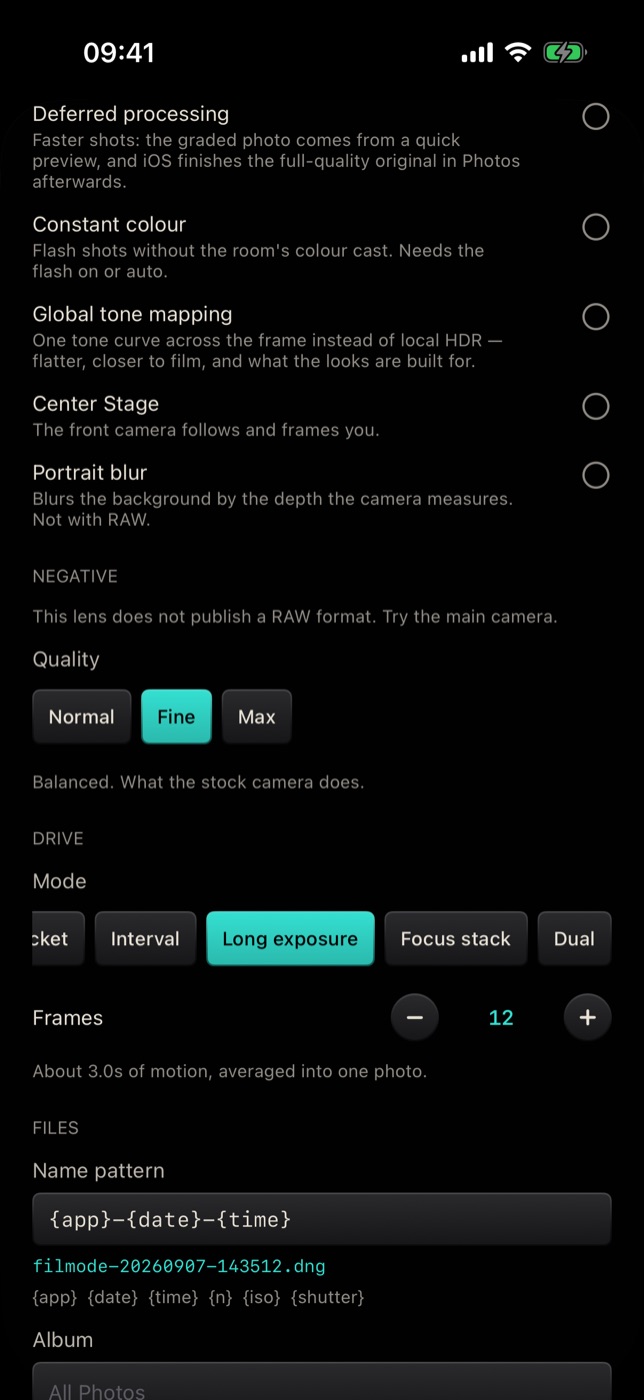
A phone's shutter stops at around a second, far short of what moving water or light trails need. Long exposure takes a run of 4 to 40 frames at the longest exposure the lens allows and averages them into one photo. Motion smears across the stack as it would across one long exposure, while brightness stays where the meter put it — so a daylight long exposure does not blow out.
The note shows how much time the result covers, for example About 3.0s of motion, averaged into one photo. More frames means more blur.
Use a tripod or rest the phone on something solid: anything that should stay sharp has to stay still for the whole run.
Focus stack — latest update
Macro photos have almost no depth of field: the front of the flower is sharp and the back is not. Focus stack walks the focus from near to far over 3, 5, 8 or 12 frames and keeps the sharpest part of each, so the whole subject ends up in focus.
- Range — Macro for very close subjects, Near for things within a short distance, Full for the whole range out to infinity.
- Use a tripod: the frames must line up.
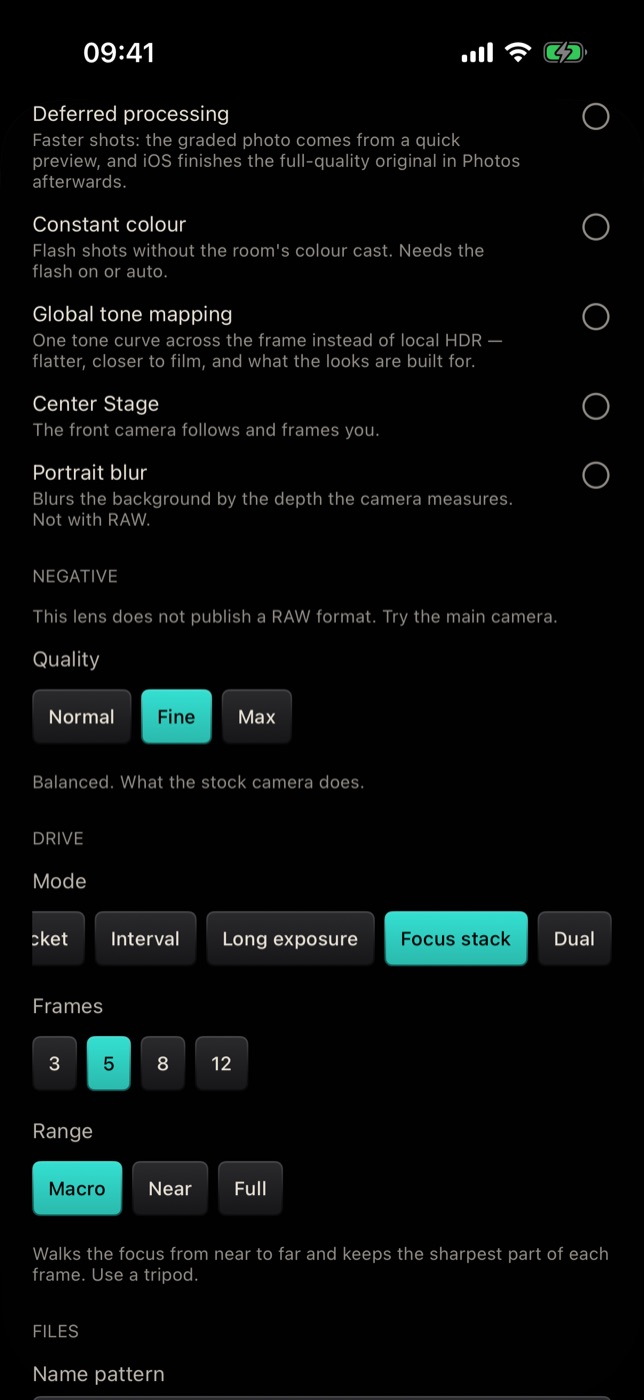
If the active camera cannot set focus by hand, Filmode says so and takes a single photo instead.
Dual — latest update
Each press takes a photo on the current camera, flips to the other one, takes a second photo, and puts the selfie in the corner of the rear shot. Good for travel, events and "who took this" moments.
Capture pipeline — latest update
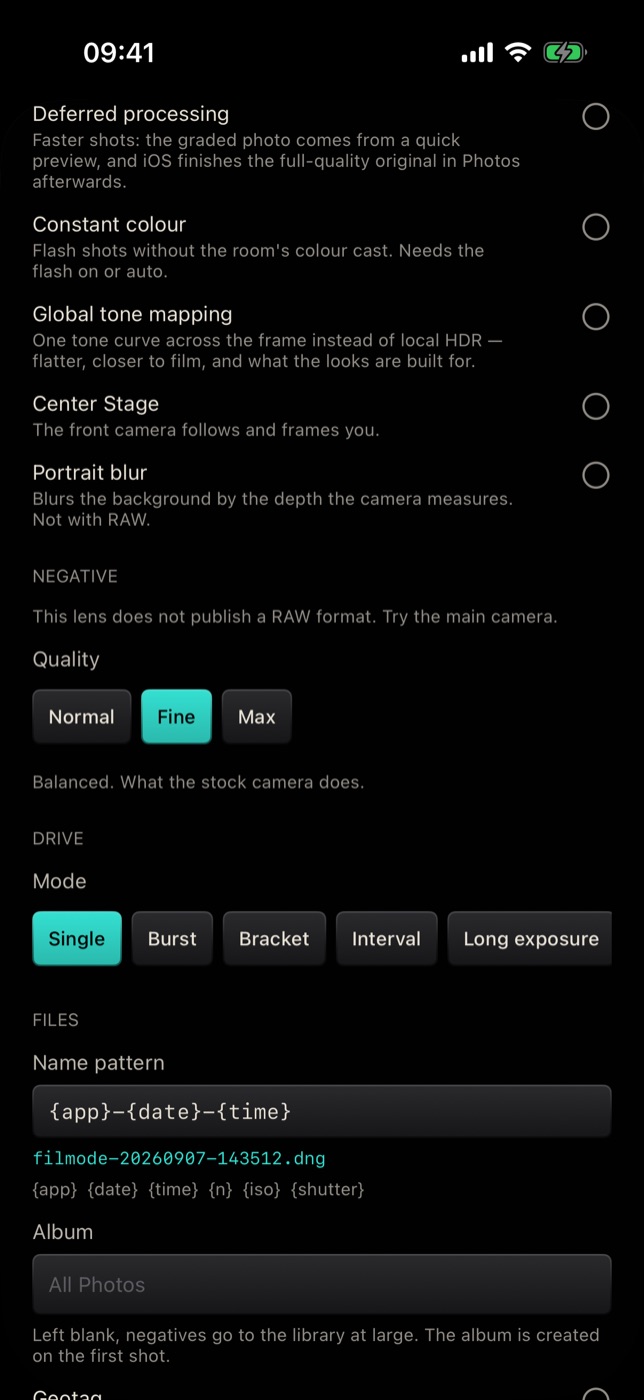
The Capture pipeline section changes how iOS processes each photo. Some switches depend on your iPhone; when a camera cannot use one, the sheet says so.
| Switch | What it does |
|---|---|
| Zero shutter lag | Keeps the frame from the moment you press, and takes the next shot while the last one is still processing. |
| Deferred processing | Faster shots: the graded photo comes from a quick preview, and iOS finishes the full-quality original in Photos afterwards. |
| Constant colour | Flash shots without the room's colour cast. Needs the flash on or auto. |
| Global tone mapping | One tone curve across the frame instead of local HDR — flatter, closer to film, and what the looks are built for. |
| Center Stage | The front camera follows and frames you. |
| Portrait blur | Blurs the background using the depth the camera measures. Not available with RAW. |
Global tone mapping is worth trying first if you shoot through film looks: the iPhone's local HDR flattens skies and lifts shadows in a way that fights a film grade.
Negative: RAW and quality
- RAW — where the active lens supports it, choose RAW or ProRAW. One press then writes both the graded photo and the untouched negative, and the negative goes to Photos. On a lens without a RAW format, the sheet tells you to try the main camera.
- Quality — Normal is fastest, with the shutter ready again immediately. Fine is balanced, what the stock camera does. Max fuses more frames for the best detail, with a longer wait between shots.
Files
These settings describe the negatives Filmode saves:
- Name pattern — build file names from {app}, {date}, {time}, {n}, {iso} and {shutter}. A preview underneath shows the result, for example filmode-20260907-143512.dng. {n} is a running shot number: Next number shows the one the next negative gets, and Reset starts the count again.
- Album — type an album name to keep negatives together. Left blank, they go to your library at large. The album is created on the first shot.
- Geotag — write your location into the negative. Filmode asks for location permission the first time.
Controls
- Volume keys — Shutter (either button takes the photo, so you can hold the phone still with both hands), Zoom (up zooms in, down zooms out), EV (a third of a stop per press) or Volume (the buttons keep changing the volume).
- Swipe for EV — drag up or down on the viewfinder to change exposure compensation.
- Fullscreen — hide the status bar so the frame is all there is.
Tips
- Put the phone down for the slow modes. Long exposure, focus stack and interval all need a still camera.
- Set Volume keys to Shutter on a tripod: pressing a side button shakes the phone less than tapping the screen.
- Lock exposure for timelapses. In Interval, lock ISO, shutter and white balance in the PRO panel so frames do not flicker as auto exposure adjusts.
- Go back to Single when you are done. The lit MORE cell is your reminder.
Free and Pro
Every drive mode, the capture pipeline switches, RAW, quality, file and control settings are free. What is offered depends on your device: RAW, ProRAW, Center Stage and some pipeline switches only appear where the camera supports them.
Frequently asked questions
Why can't I see a RAW option? The active lens does not publish a RAW format. Switch to the main camera. ProRAW needs an iPhone model that supports it.
Why did focus stack take only one photo? The active camera cannot set focus by hand, so there is nothing to sweep. Try the main rear camera.
Does long exposure need a tripod? For moving water or light trails, yes, or a solid surface. Handheld, everything blurs, not just what is moving.
Can Portrait blur and RAW be used together? No. Portrait blur is not available with RAW.
Is a drive mode saved in a recipe? No. Camera recipes save manual exposure, the look and the viewfinder setup; drive mode is set separately.
Try it
Open the Camera tab in Filmode, tap PRO, then MORE, set Drive to Bracket with 3 frames at +1.0 EV, and point the camera at a window. For the exposure controls behind these modes, read Manual camera controls.