100 trend looks in Filmode — six packs and how to pick the right one
Film Stock, Cine Grade, Street, Portrait, Travel and Retro Digital: how to find the 100 trend looks in the Filmode editor and which to use for each scene.
On this page
Filmode's look library grew by a hundred. The trend looks are six new packs built around what people actually ask for: film-stock emulation, cinema grades, night streets, skin, travel moods and the early-2000s digital revival. They sit in the same Filters strip as every other look, preview live on your photo, and work with the intensity slider you already know.
This guide shows where the packs are, what is in each one, and a quick way to choose a look for the photo in front of you.
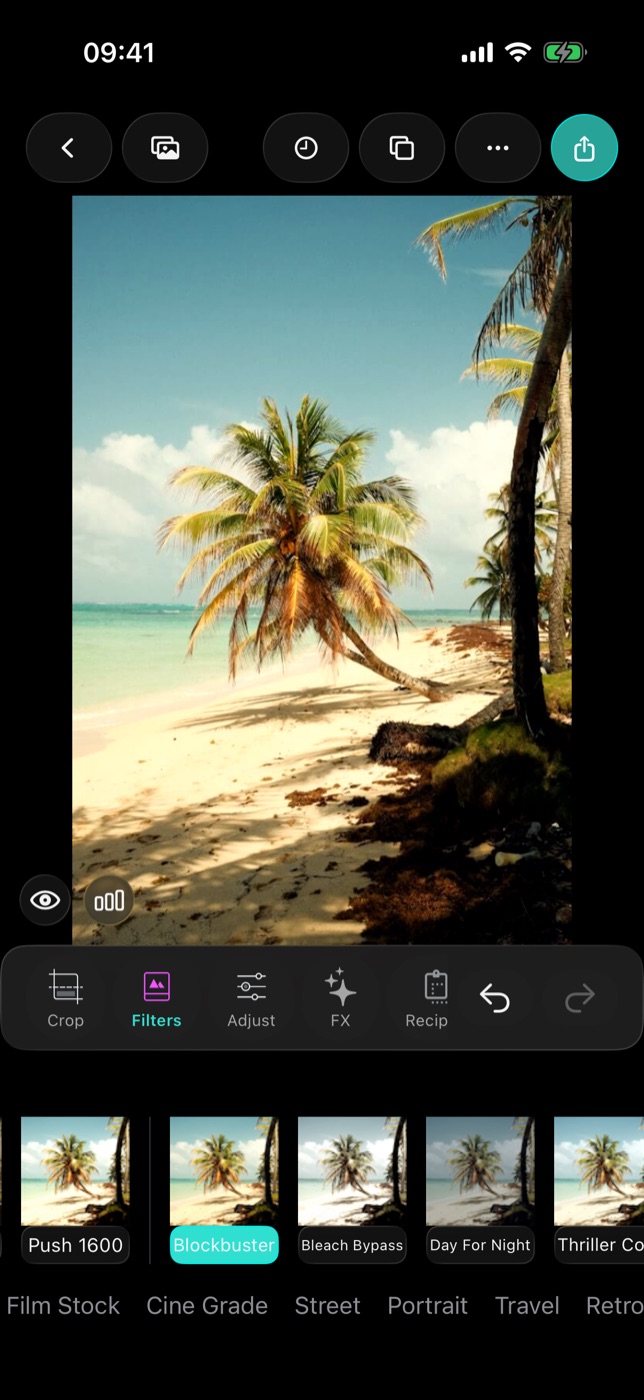
Why these looks are different under the hood
Most looks in a photo app are shipped as image files, and every one of them makes the download bigger. The trend looks are not files. Each one is a dozen grading numbers — temperature, tint, contrast, fade, saturation, shadow and highlight tints — that Filmode bakes into a colour cube the first time you use it and keeps from then on. A hundred new looks, and the app download did not grow for them.
For you, that means two things: the first tap on a trend look can take a moment while it is baked, and after that it is as fast as any other look.
Find the trend packs
- Open a photo in the editor and tap Filters.
- Look at the collection names under the strip. Scroll them sideways to find Film Stock, Cine Grade, Street, Portrait, Travel and Retro Digital.
- Tap a pack name to bring that pack's looks into the strip.
- Tap a look to preview it on your photo. Tap it again to open its intensity slider.
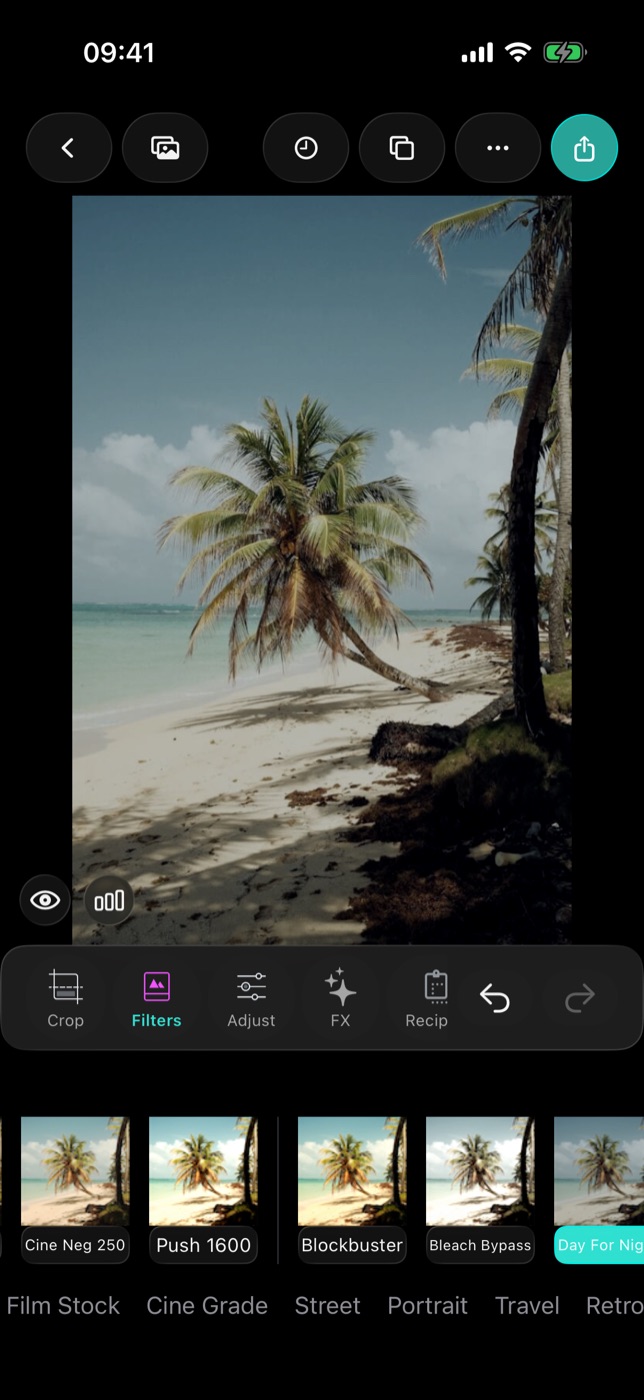
The six packs
| Pack | Looks | What it is for | A few to try |
|---|---|---|---|
| Film Stock | 20 | Negative, slide and darkroom print emulations | Warm Neg 400, Slide Velour, Redscale, Push 1600 |
| Cine Grade | 20 | Colour grades that read like a film still | Blockbuster, Bleach Bypass, Day For Night, Neo Noir |
| Street | 15 | Night, neon and city light | Neon Night, Sodium Street, Blue Hour, Street Mono |
| Portrait | 15 | Skin first, from clean to editorial | Clean Beauty, Golden Skin, Editorial, Ivory Light |
| Travel | 15 | Landscapes and places by mood | Tropical Teal, Autumn Leaf, Alpine Snow, Cherry Bloom |
| Retro Digital | 15 | Camcorders, early digicams, VHS and photo booths | Y2K Camcorder, VHS Tape, Flash Party, Camera Phone |
Look names describe what the look does rather than naming a real film product, and each has a one-line description — Orange skin against cyan skies for Blockbuster, Daylight graded down to moonlight for Day For Night.
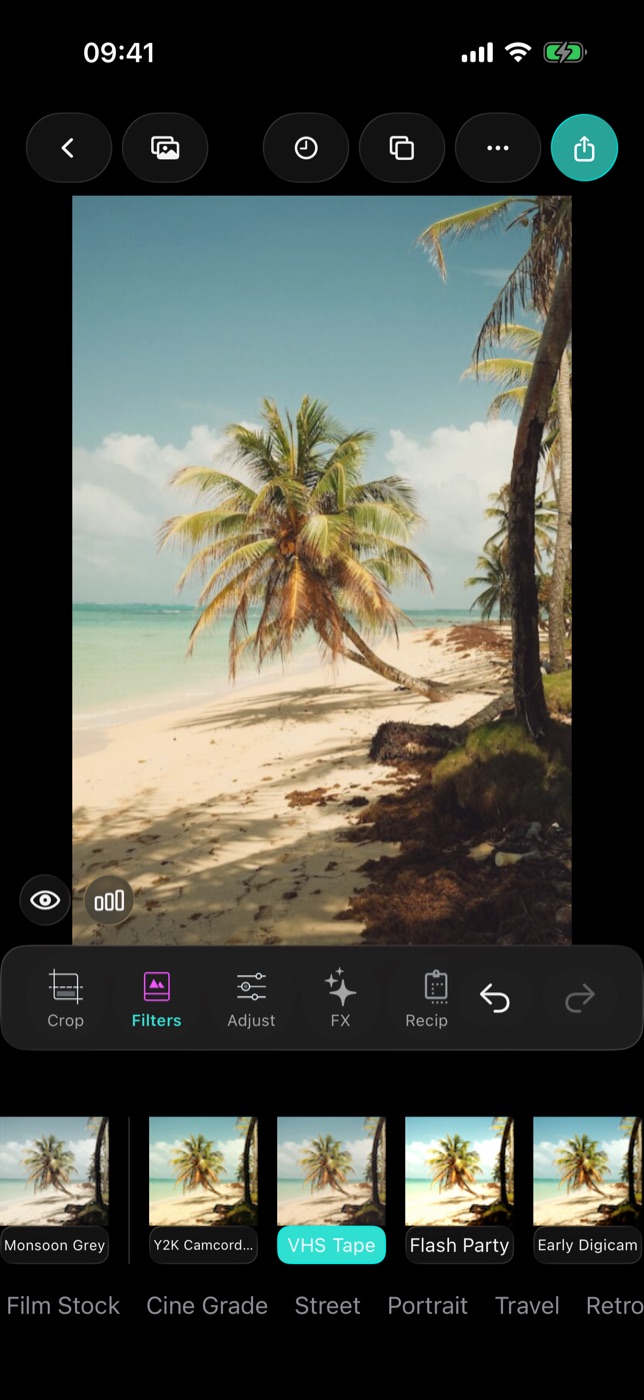
Pick a look by scene
- Beach and holiday: start in Travel with Tropical Teal or Sunset Coast, or go bold with Summer Grade in Cine Grade.
- City at night: Street's Neon Night for signage, Sodium Street for orange lamps, Rain Noir when the ground is wet.
- Portraits: Portrait's Clean Beauty or Studio Neutral when skin must stay true, Golden Skin or Sunkiss Glow for warmth.
- Party and friends: Retro Digital's Flash Party or Night Flash for that direct-flash look.
- Black and white: Silver Print, Selenium BW and Sepia Print in Film Stock, or Street Mono for hard contrast.
- Moody film still: Bleach Bypass, Nordic Drama or Faded Drama in Cine Grade.
Tips for getting more out of a look
- Use intensity. Strong looks like Redscale, Green Matrix or Cyber Magenta often land best at 50–70%.
- Fix exposure first. A look lands more predictably on a well-exposed photo. Set exposure and white balance in Adjust, then choose the look.
- Hold the eye icon under the photo to compare with the original.
- Batch a whole shoot. Once a look works on one photo, apply it to the rest with batch edit for a consistent set.
Free and Pro
All 100 trend looks are part of Filmode Pro. You can still tap any of them on the free plan and see it live on your photo; the Pro sheet appears when you go to export the photo with a Pro look on it. The free Basic and Retro looks remain free, and so does full-resolution export with them.
Frequently asked questions
Do the trend looks make the app bigger? No. They are stored as grading numbers and built on your device the first time you use them.
Why does a trend look take a moment the first time? That is the look being baked into a colour cube. It is cached afterwards.
Can I use a trend look on many photos at once? Yes, with batch edit, as long as you have Pro.
Are they on iPad and Mac? Yes, in the editor's Filters strip on iPhone, iPad and Mac.
Try it
Open a photo in Filmode, tap Filters and scroll the pack names to Cine Grade. For more on how intensity and collections work, read LUT colour grading on iPhone.