Pro optics on iPhone — anamorphic flare, Pro-Mist, tilt-shift, Aerochrome and zoom burst
Five lens and filter effects in the Filmode editor, each with controls that behave like the real glass. Where to find them and how to set each one.
On this page
Grain, light leaks and VHS lines make a photo look old. They do not make it look shot through something. Photographers who carry a diffusion filter, a tilt-shift lens or a roll of infrared film get a different kind of picture, and that is what the Pro optics in Filmode are for: five effects simulated from how the glass and the film behave, not stacked on top as an overlay.
This guide covers where the five effects live, what each control does, and which photos each one suits.
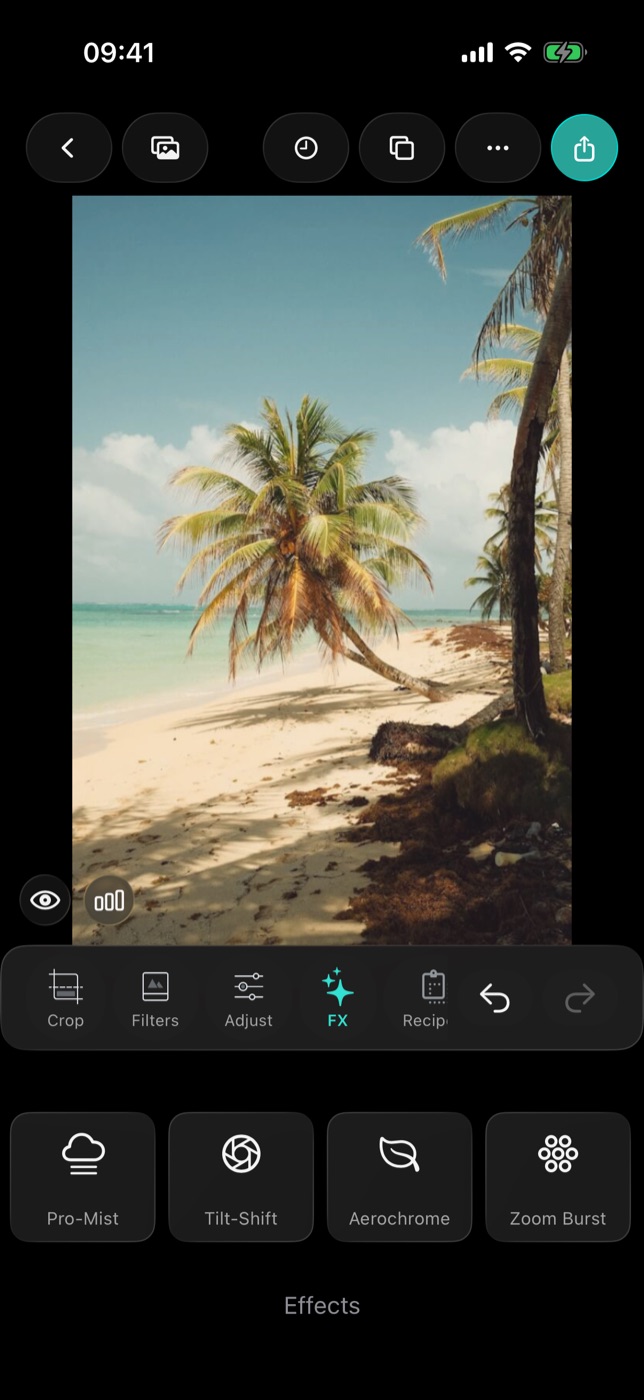
Find the Pro optics
- Open a photo in the editor and tap the FX tab.
- Swipe the effect tiles to the end. Pro-Mist, Tilt-Shift, Aerochrome and Zoom Burst fill the last page, with Anamorphic just before them.
- Tap a tile to turn the effect on. Its panel opens with an intensity slider, a row of Look chips and the effect's own controls.
- Pick a look first, then fine-tune with the sliders.
Every effect keeps the whole frame: nothing is cropped when a blur or streak runs near the edges.
Anamorphic flare
A cinema anamorphic lens throws a long horizontal streak off every bright point — car headlights, street lamps, the sun on water. Filmode builds the streak from the highlights of your own photo, with a soft falloff at the ends so it does not look pasted on.
Looks: Blue Streak (the classic cinema blue), Gold Streak (warm, like vintage uncoated glass), Silver (neutral — the one that leaves skin alone) and Sodium (orange-red for night streets).
Controls:
- Streak length — how far each streak reaches across the frame.
- Flare threshold — how bright a point has to be before it flares. Lower it for an over-flared night look; raise it so only the brightest lights streak.
Best on: night streets, city lights, backlit scenes with a few strong highlights. On a flat daylight photo there is little for it to catch.
Pro-Mist diffusion
A diffusion filter does two things at once: it blooms the highlights and it lifts the blacks, softening contrast the way no single slider does. Filmode's Pro-Mist does both halves.
Looks: Black Pro-Mist (bloom without brightening the frame — the one that survives a colour grade), White Pro-Mist (the same bloom with real haze — the "dreamy" one) and Glimmerglass (a warm, low-contrast sheen used for beauty work).
Controls:
- Black lift — how much milk goes into the shadows. Keep it low for a subtle filter, raise it for a hazy, faded picture.
Best on: portraits, backlit golden hour, anything with practical lights in the frame. Start with Black Pro-Mist at a low intensity; diffusion is most convincing when you almost do not notice it.
Tilt-Shift
A tilt-shift lens swings the plane of focus, so only a slice of the scene is sharp — the look that makes a real city look like a model. Filmode's blur grows gradually away from the sharp area, which is what makes it read as a lens rather than two layers.
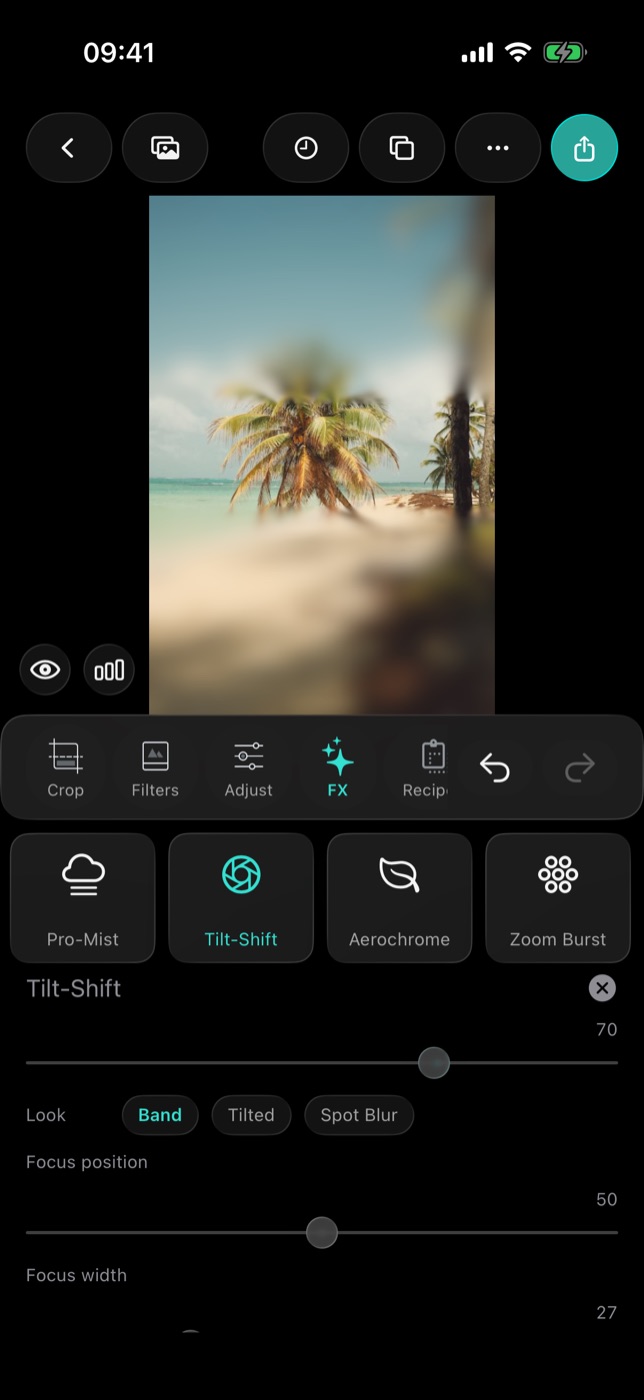
Looks: Band (a horizontal band of focus), Tilted (the band swung at an angle) and Spot Blur (a round island of focus for a single subject).
Controls:
- Focus position — where the sharp area sits in the frame.
- Focus width — how deep the sharp area is.
- Focus angle — the tilt of the band, from −180° to 180°.
Best on: photos taken from above — a street from a bridge, a harbour from a hill, a crowd from a balcony. The miniature effect needs a high viewpoint; at eye level it reads as shallow depth of field instead.
Aerochrome
Colour infrared slide film turned living foliage magenta and pushed skies toward cyan. Filmode's Aerochrome rebuilds that false colour on an ordinary photo by deciding, pixel by pixel, what reads as vegetation, and it never looks flat — the slide-film contrast is part of the effect.
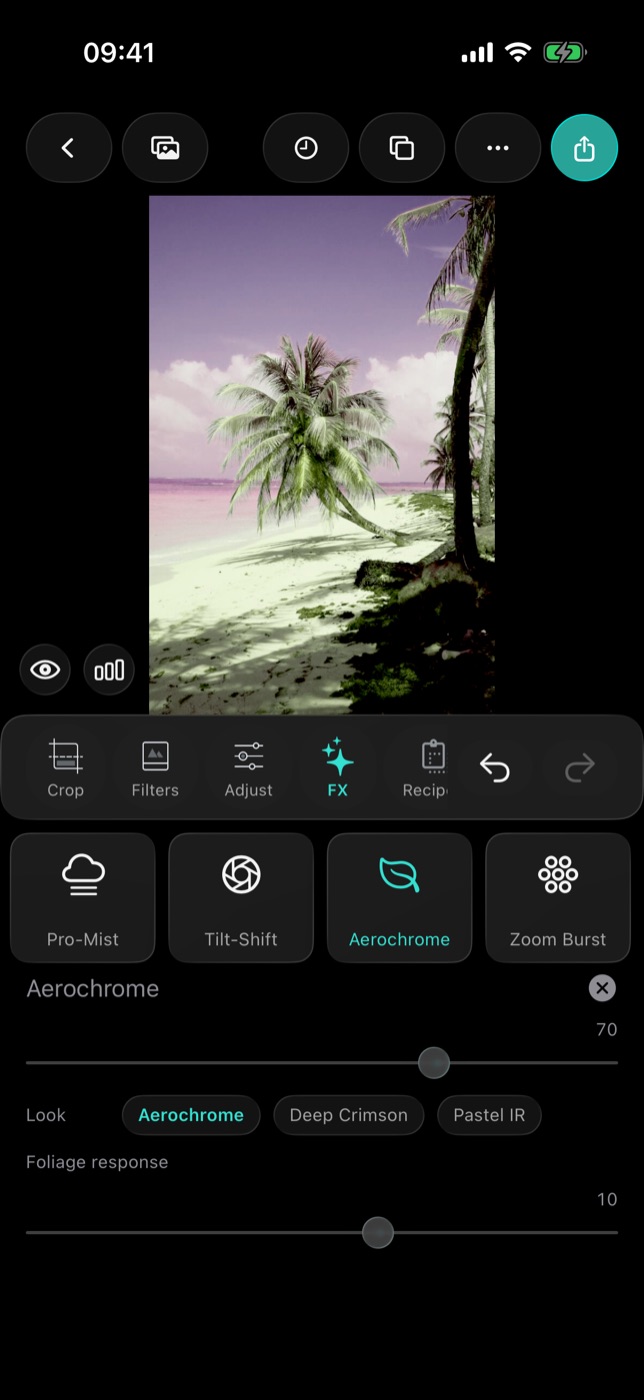
Looks: Aerochrome (the classic: foliage magenta, sky cyan), Deep Crimson (pushed — dry grass and shadowed leaves turn too) and Pastel IR (held back and desaturated, closer to an old slide scan).
Controls:
- Foliage response — how much of the frame counts as vegetation, from −50 to 50. Raise it to catch more; lower it when things that are not plants — a green roof, a green shirt — are changing colour too.
How strong the swap looks depends on the photo. On the beach above, with sunlit palms and a big sky, the sky carries most of the change; a park or forest with deep greens gives the classic magenta foliage.
Best on: landscapes, parks, forests and gardens with plenty of green and some sky.
Zoom Burst
Zooming the lens during a long exposure smears the frame outward from a point, a classic way to put speed into a still photo. Filmode can also warp or spin the blur.
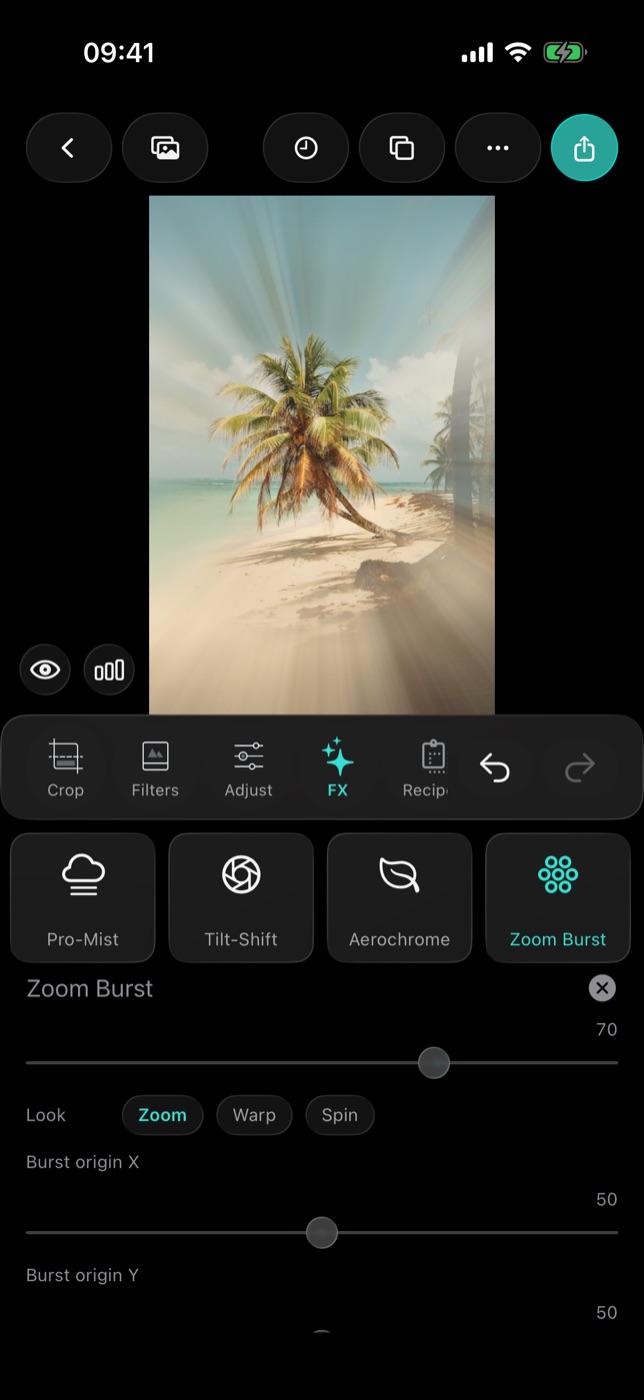
Looks: Zoom (straight radial streaks), Warp (a curved, stretched version) and Spin (a rotational blur around the origin).
Controls:
- Burst origin X and Burst origin Y — the point the blur radiates from. Put it on your subject.
- Protected area — the size of the sharp zone around the origin, so the subject itself does not smear. Raise it for a portrait, lower it for a pure abstract.
Best on: a single subject in the middle of a busy scene — a runner, a cyclist, a face in a crowd, a car at night.
Tips
- One optic per photo is usually enough. They are strong on purpose. If you do combine them, lower the intensity of both.
- Set colour first. Choose the look in Filters and fix exposure in Adjust, then add the optic. Anamorphic and Pro-Mist both react to highlights, so exposure changes what they do.
- Pick the look chip before touching sliders. The look sets the character of the effect; the sliders then place and size it.
- Compare often. Hold the eye button under the photo to see it without edits.
Free and Pro
The five Pro optics are part of Filmode Pro. The other effects in the FX tab are unchanged by this update.
Frequently asked questions
Are the Pro optics overlays or real effects? Real effects. Each one is computed from your photo's own highlights, colours or geometry, which is why a streak follows a lamp and a Tilt-Shift band follows the angle you set.
Why does Aerochrome change things that are not plants? It looks at colour, not at what the object is. Lower Foliage response until only the vegetation changes.
Why does my tilt-shift not look like a miniature? The miniature illusion needs a photo taken from above. Try a narrower Focus width and a higher intensity, or use Spot Blur for a subject at eye level.
Are they on iPad and Mac? Yes, in the editor's FX tab on iPhone, iPad and Mac.
Try it
Open a night photo in Filmode, tap FX, swipe to the end of the effects and try Anamorphic with the Sodium look. For the rest of the effects, read the photo FX effects guide.