Booth Mode — a four-shot photo booth strip on your iPhone camera
Turn the Filmode camera into a photo booth: four timed shots, laid out down one strip with your look applied, ready to save or share.
On this page
A photo booth strip works because you do not get to think. The light flashes, you have a few seconds to change the pose, and four frames later you have a strip that is funnier than any single photo.
Booth Mode puts that in the Filmode camera. One tap starts a countdown, the camera takes four shots in a row, and the four frames come out laid down a single vertical strip, ready to save or share.
Take a strip
- Open the Camera tab and pick a look from the look row. The look you pick is the one the strip is shot with.
- Prop the phone up or hand it to a friend, and get everyone in frame.
- Tap BOOTH in the right-hand column, under MINE, ROLL and FX.
- Strike a pose. A three-second countdown runs, the camera takes the first shot, and after a one-second beat the next countdown starts. The button shows how far along the run is: 1/4, 2/4, 3/4.
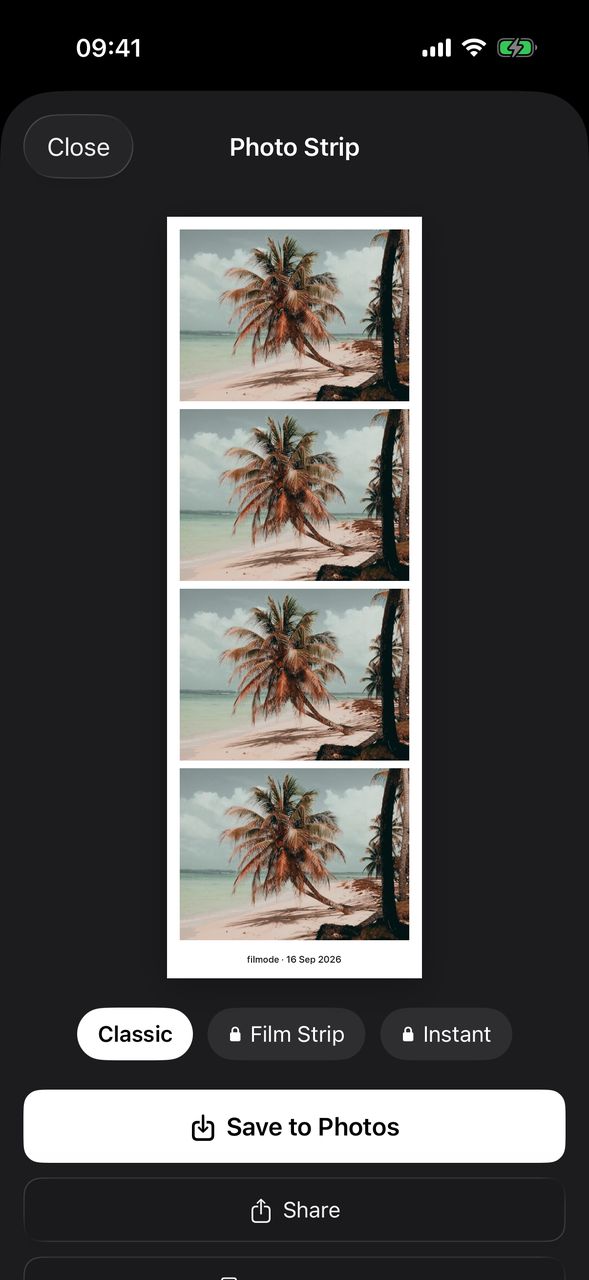
- After the fourth shot the Photo Strip sheet opens with your strip.
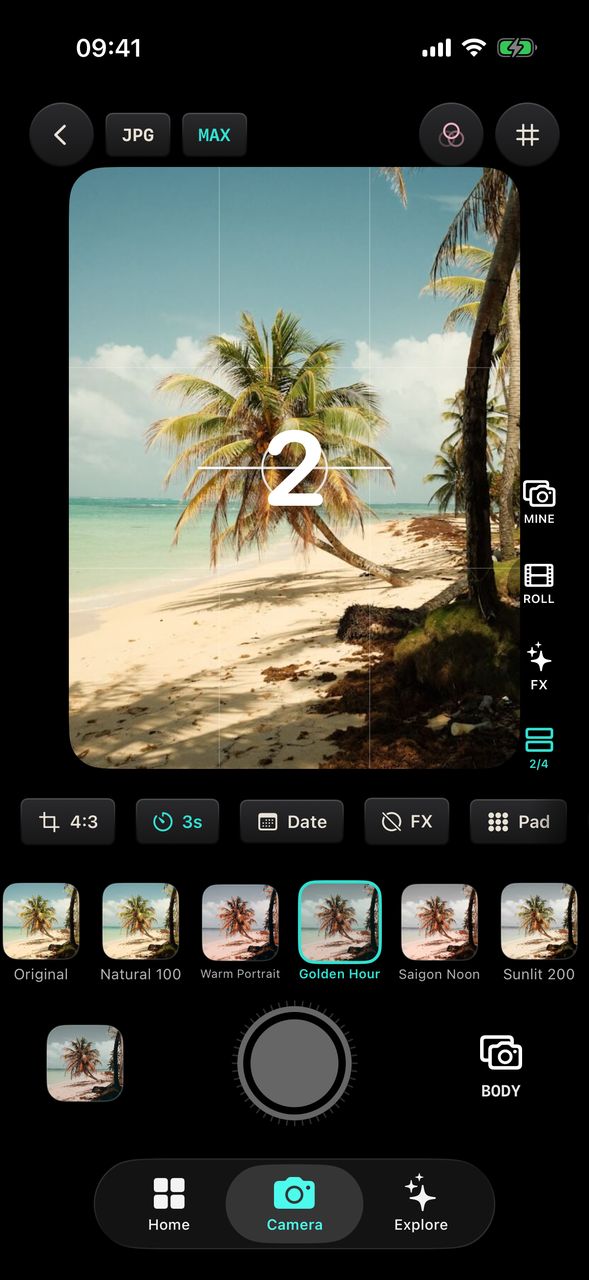
Changed your mind halfway? Tap the button again to stop the run. The countdown is cancelled and the shots taken so far are dropped.
A few things to know about a run:
- Booth Mode works in photo mode, not video.
- It uses a three-second timer for every shot, whatever the timer was set to, and puts your own timer setting back when the run ends.
- Booth shots are only for the strip. They do not go onto a loaded Film Roll and they do not open the editor.
Pick a paper
The Photo Strip sheet has three papers. Tap one to see your strip on it:
- Classic — white paper with a dark caption.
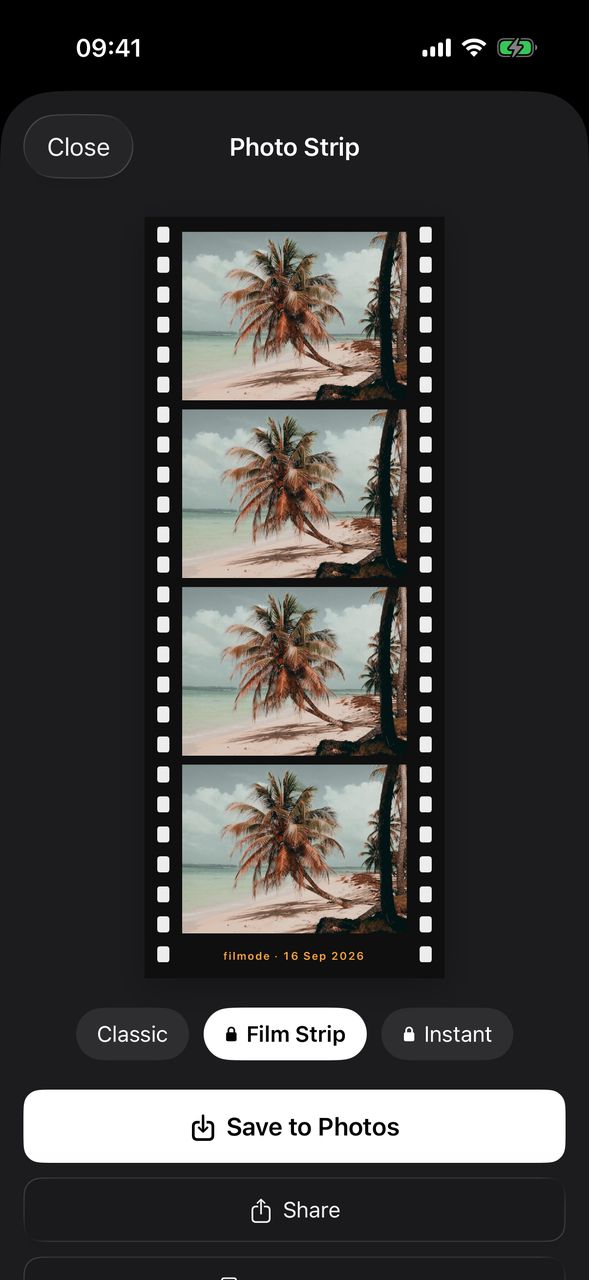
- Film Strip — black film base with sprocket holes down both edges and an orange caption.
- Instant — warm instant-film paper with a deep bottom margin.
Every paper puts the same caption at the bottom: filmode and the date, such as filmode · 16 Sep 2026. Each shot is centre-cropped to a 4:3 landscape frame, so four portrait phone photos still stack into a neat strip. The finished strip is 1200 pixels wide.
Save or share
- Save to Photos saves the strip as one image to your photo library.
- Share opens the share sheet, so you can send it straight to the group chat.
The four separate shots are not saved on their own. The strip is the result.
Order Prints: not yet
Under Share there is an Order Prints button. Today it does not order anything: nothing is sent to a lab and nothing is charged. Tapping it lets Filmode know you would like real prints of your strips and shows Prints are coming soon. It helps decide whether printing comes next.
Free and Pro
Booth Mode itself is free: anyone can run a booth and save or share a strip on the Classic paper. Film Strip and Instant are part of Filmode Pro. Without Pro they show a lock, but you can still tap them to preview your strip on that paper; saving or sharing a locked paper opens the Pro screen.
The look you shoot with follows the usual camera rules for free and Pro looks.
Tips for a better strip
- Plan four poses before you tap. Serious, laughing, looking away, everyone squeezed in. The one-second beat goes fast.
- Use the front camera if you want to see yourselves while you pose.
- Pick the look first. A warm or faded look makes the strip feel like it came out of a real booth.
- At a party, put the phone on a shelf at eye level and let people take turns. For photos from every guest's own phone, see Shared Roll.
Frequently asked questions
How many photos are in a strip? Four, taken one after another.
Can I change the countdown? No. Booth Mode always uses a three-second countdown for each shot and restores your own timer afterwards.
Does Booth Mode work in video mode? No. Switch the camera to photo mode first.
Are the booth shots added to my Film Roll? No. Booth shots only go into the strip, even when a roll is loaded.
Is Booth Mode free? Yes, with the Classic paper. The Film Strip and Instant papers need Filmode Pro to save or share.
Can I order a printed strip? Not yet. Order Prints only records that you want prints; nothing is ordered or charged.
Try it
Open Filmode, pick a look, tap BOOTH and make four faces. Then try the same moment on a roll with the Film Roll guide.