Cull a film roll on iPhone — pick, star and reject frames on the contact sheet
Go through a developed Filmode roll like a photographer: Pick, Star or Reject each frame, filter the contact sheet, then save only the keepers.
On this page
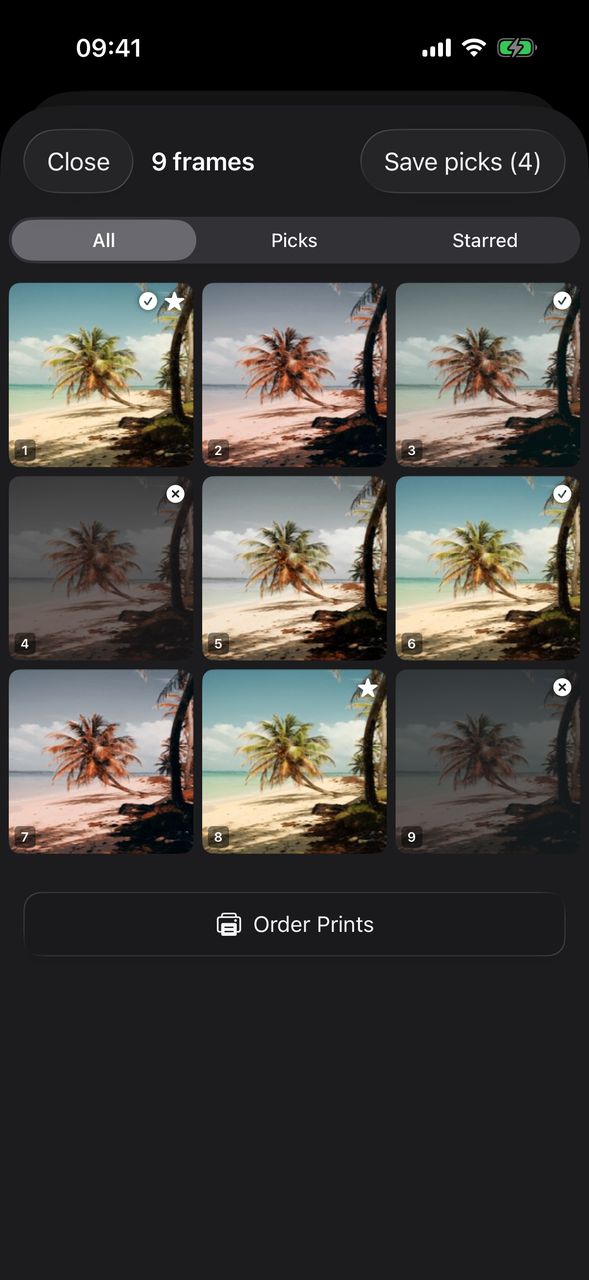
A developed Film Roll opens as a contact sheet: every frame, numbered, in the order you shot it. That is the fun part. The next part is the one photographers have always done with a loupe and a grease pencil — going through the sheet and deciding which frames are worth keeping.
The contact sheet in Filmode now has the tools for that: mark each frame as a Pick, a Star or a Reject, filter the sheet to what you marked, and save only the keepers to Photos in one tap.
Mark a frame
- Open a developed roll from Developed rolls in the Film Roll sheet, or straight from the contact sheet after it develops.
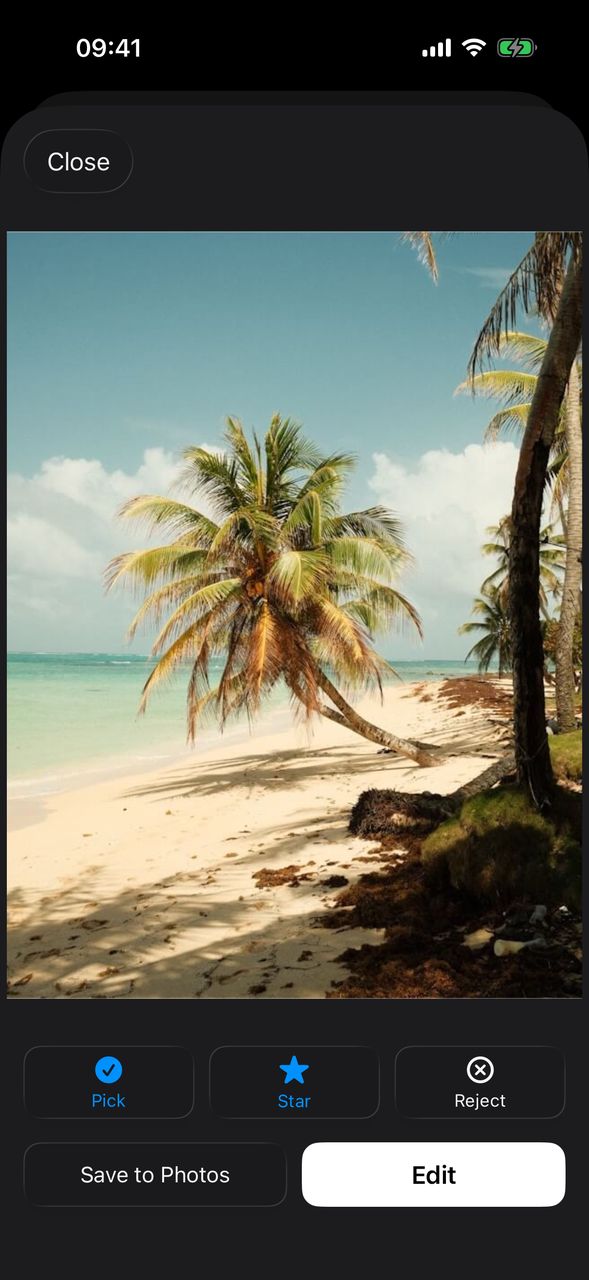
- Tap a frame to see it full size.
- Tap Pick, Star or Reject under the photo. Tap the same button again to take the mark off.
- Tap Close to go back to the sheet and open the next frame.
What each mark means:
- Pick — a keeper.
- Star — a favourite. A starred frame is also a keeper.
- Reject — not this one. A frame is either a pick or a reject, never both.
The marks keep each other honest. Rejecting a starred frame takes its star off, and starring a rejected frame un-rejects it, so a frame can never be a starred reject.
Back on the contact sheet, every marked frame carries a small badge — a checkmark for a pick, a star for a star, a cross for a reject — and rejected frames are dimmed, so you can see how the edit is going at a glance.
Filter the sheet
Above the contact sheet sits a switch with three views:
- All — every frame on the roll.
- Picks — every keeper: frames that are picked or starred, and not rejected.
- Starred — only the starred frames.
If a filter has nothing in it yet, the sheet says so — No picks yet. Open a frame to pick or star it. The frame numbers stay the same in every view, so frame 07 is always frame 07.
On iPhone the sheet is three frames across; on iPad it is five.
Save the keepers
As soon as a roll has at least one keeper, a Save picks button appears in the top bar with the count, such as Save picks (5). Tap it and Filmode saves every picked or starred frame that is not rejected to your photo library, in order, and tells you how many were saved.
You can still save a single frame with Save to Photos when you open it, or send it to the editor with Edit.
Order Prints: not yet
At the bottom of the contact sheet there is an Order Prints button. To be clear about what it does today: nothing is ordered and nothing is charged. Printing is not available yet. Tapping the button tells Filmode you would like prints of your rolls — it counts the request and shows Prints are coming soon. If enough people ask, it helps decide what comes next.
Free and Pro
Culling is free. Pick, Star, Reject, the All / Picks / Starred filter and Save picks work on every developed roll, with or without Filmode Pro. Pro changes the rolls themselves: 24- and 36-frame rolls and the Surprise develop option.
Tips for culling a roll
- Do a fast first pass. Go through the whole roll once and only Pick. Do not think about favourites yet.
- Star on the second pass. Switch to Picks and star the few frames you would print or post.
- Reject only when it helps. You do not need to reject every miss — frames without a mark are not saved by Save picks anyway. Reject is for frames you want to dim out of the way.
- Save, then edit. Save picks copies the frames as they came off the roll. Open any frame with Edit to crop or grade it afterwards.
Frequently asked questions
Does rejecting a frame delete it? No. A rejected frame is only dimmed and left out of Save picks. It stays on the roll; the only way to delete frames is to throw away the whole roll.
Are my marks saved? Yes. The marks are stored with the roll, so they are still there when you reopen it from Developed rolls.
Can I cull a roll that is still developing? No. The frames are hidden until the roll develops. Use Develop Now if you cannot wait.
Does Save picks save starred frames that are not picked? Yes. A starred frame counts as a keeper whether or not it is also picked.
Can I actually order prints? Not yet. The Order Prints button only records that you want prints. Nothing is sent to a lab and nothing is charged.
Try it
Develop a roll in Filmode, go through it once with Pick, switch to Picks and tap Save picks. New to rolls? Start with the Film Roll guide, or try a Weekend develop for the full lab feeling.